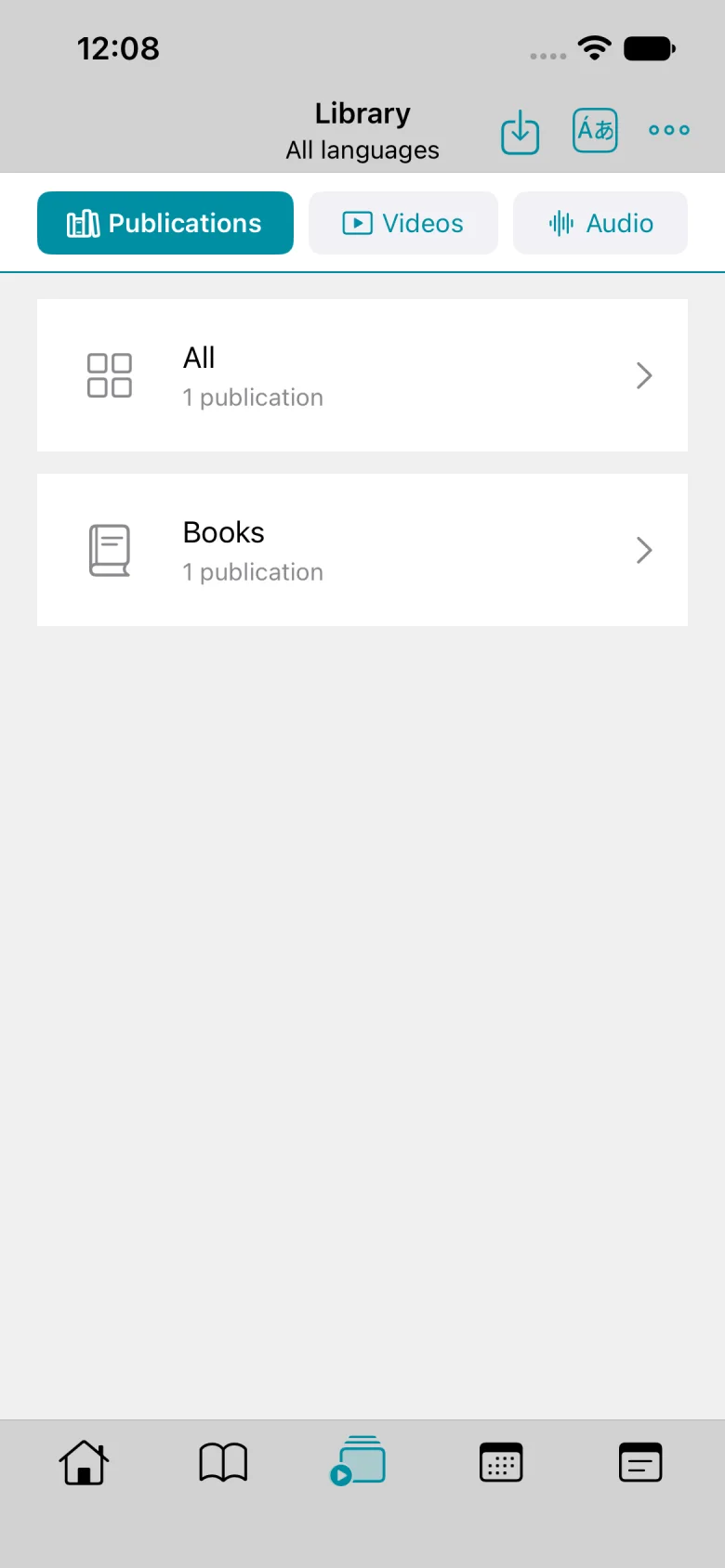
You can bundle EPUB and PDF in the same ZIP and import both by choosing Publications. Select one ZIP at a time.
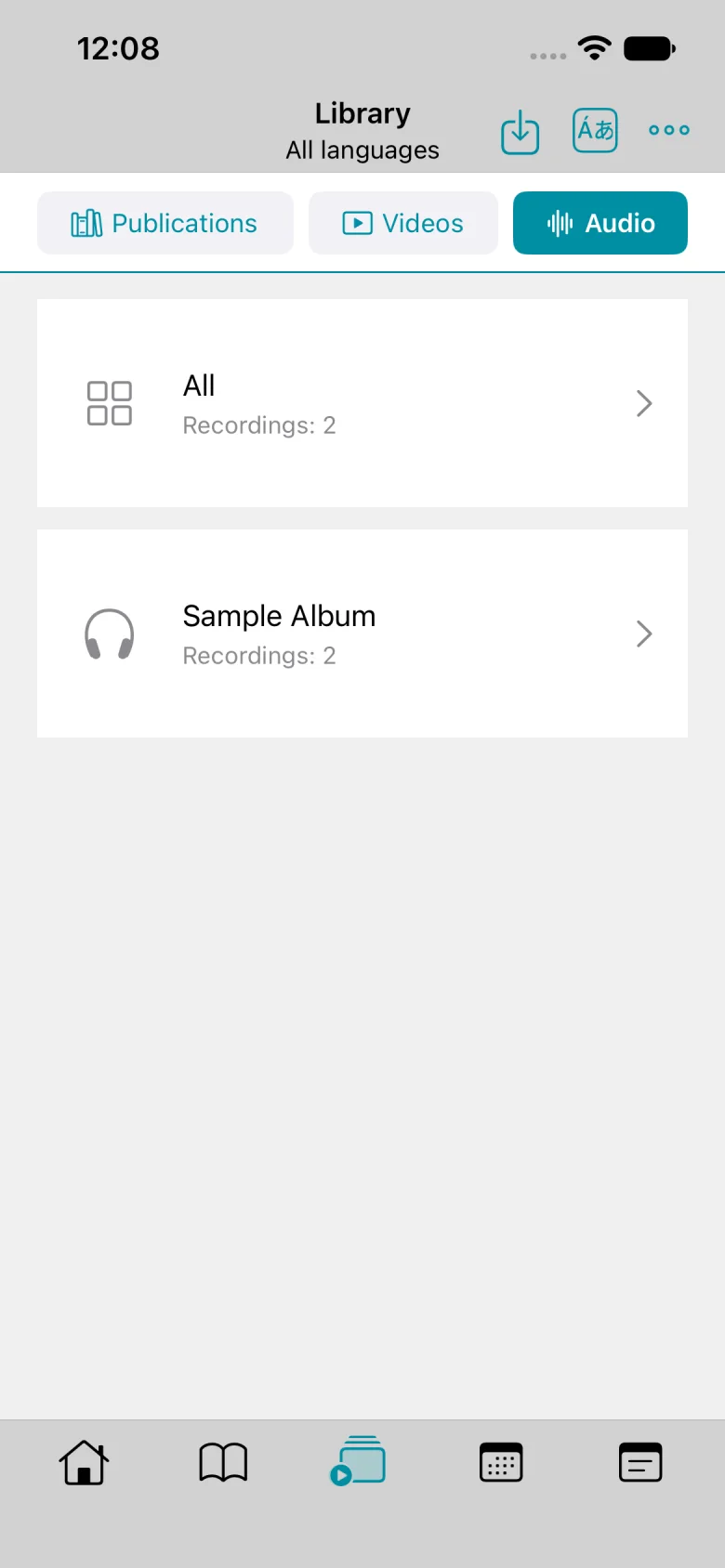
Tap the import icon. This example starts in Publications.
Choose Videos. Choose Publications for EPUB and PDF, or Audio for MP3.
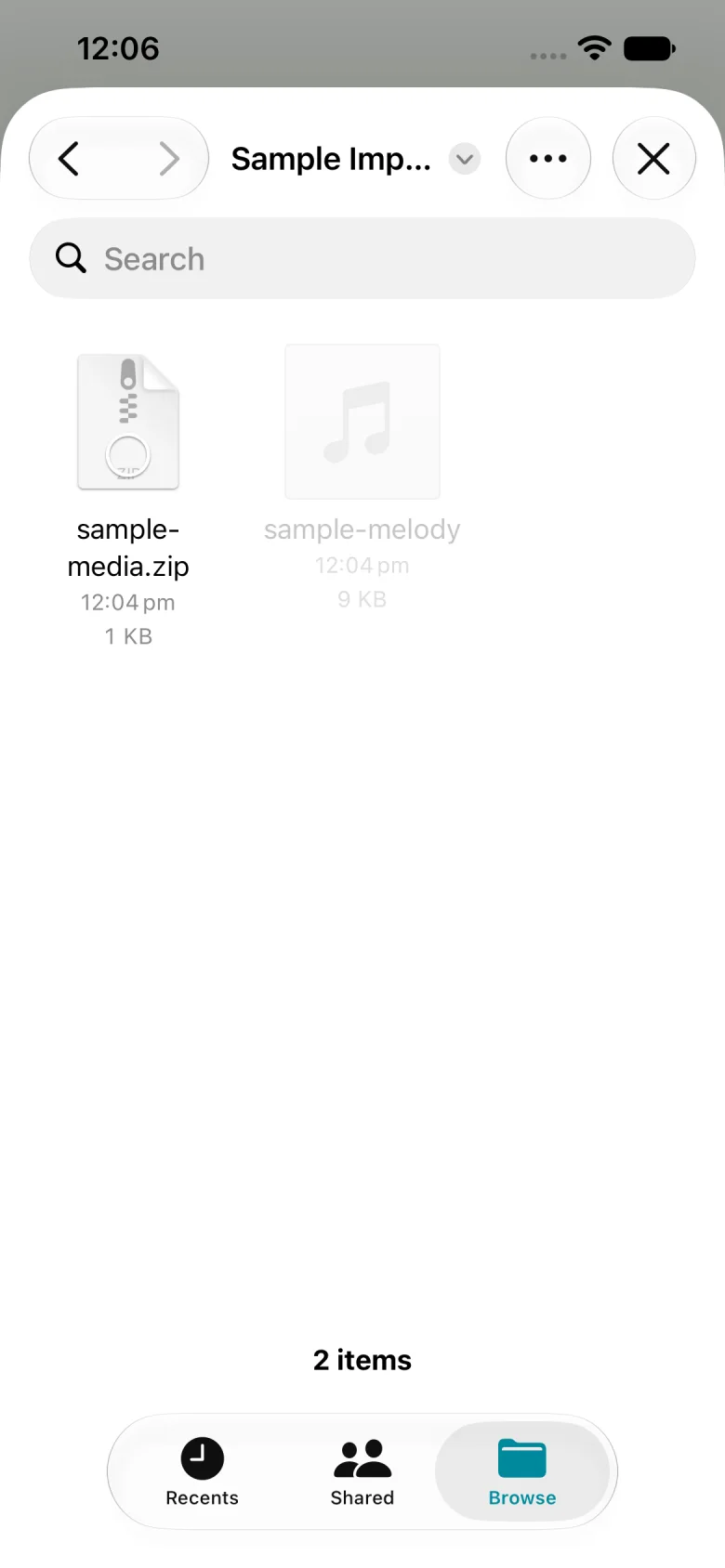
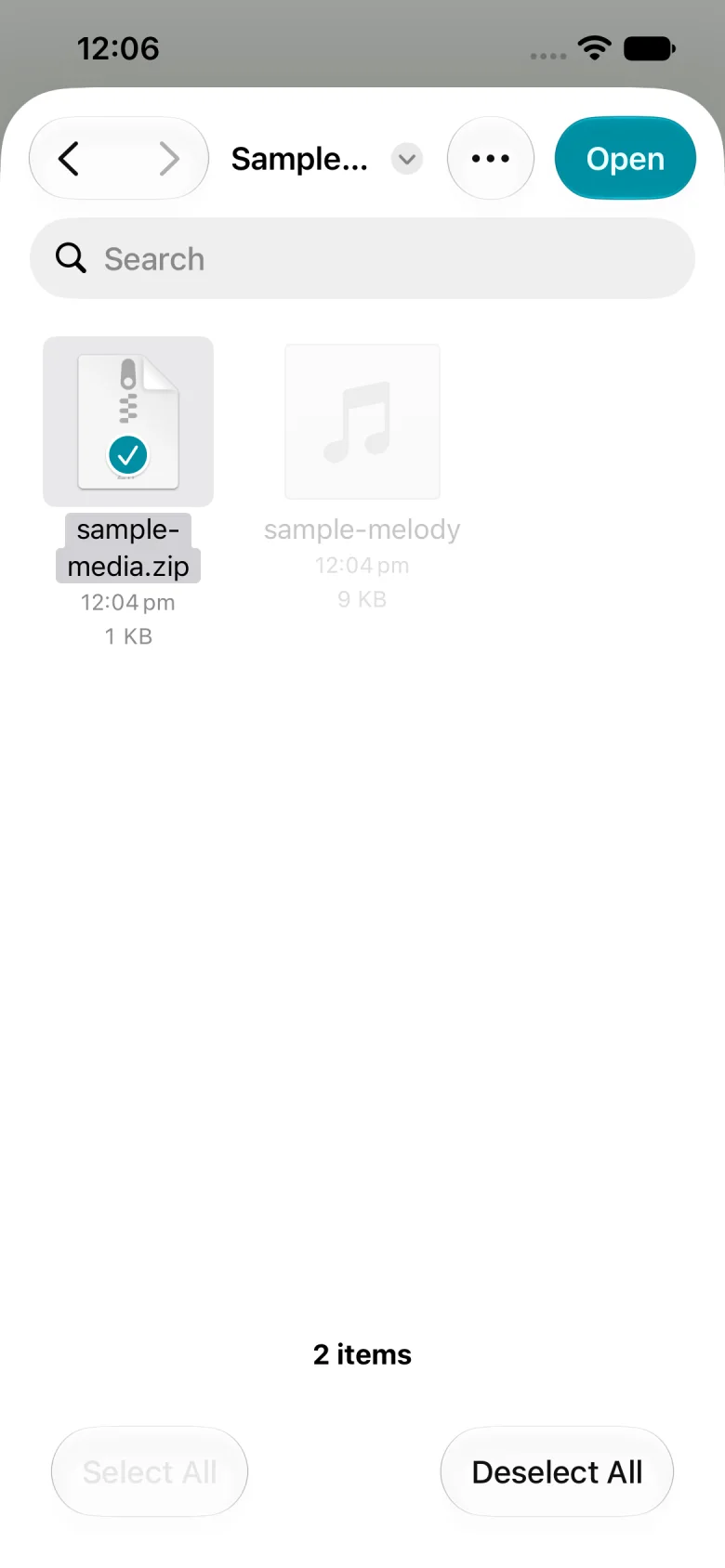
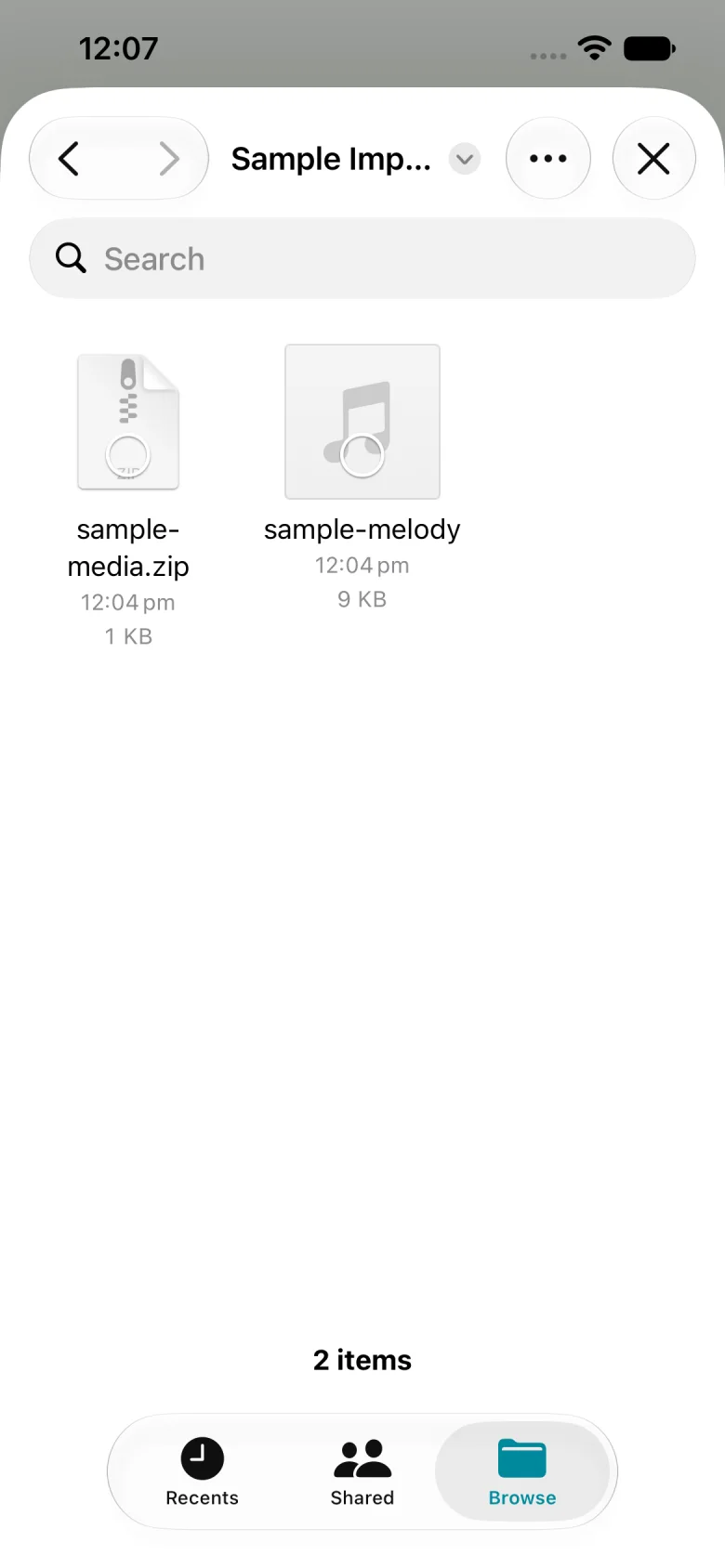
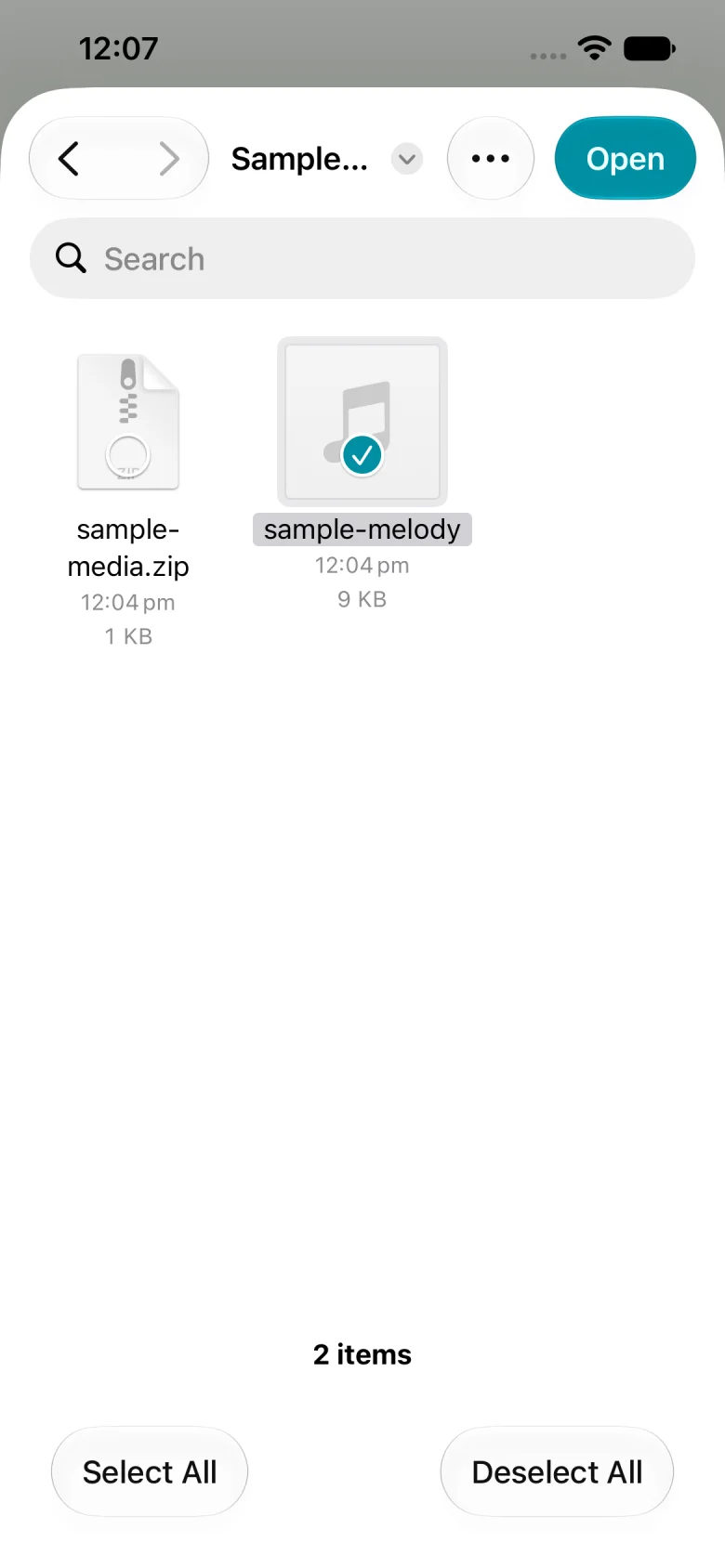
In Files, select sample-media.zip.
Tap Open to return to EpubLib.
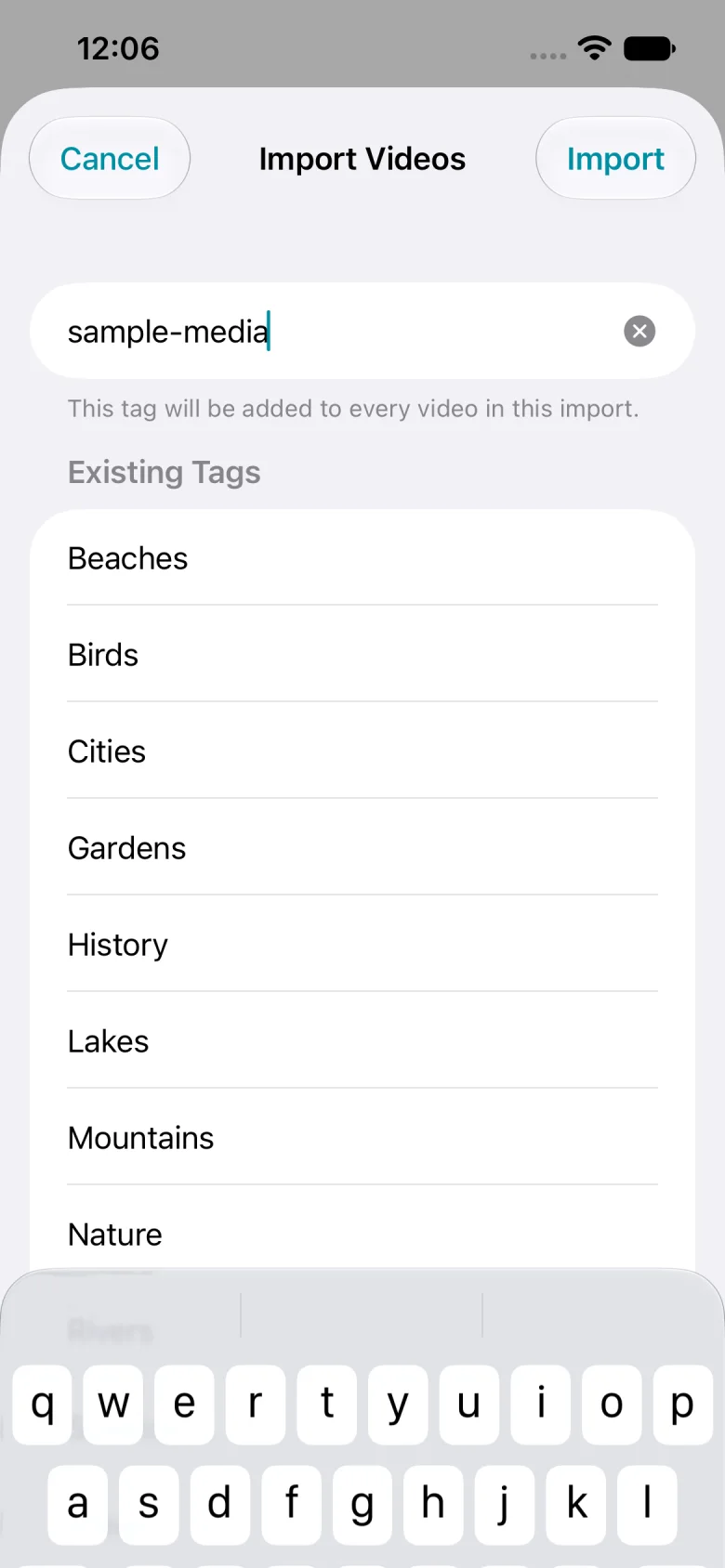
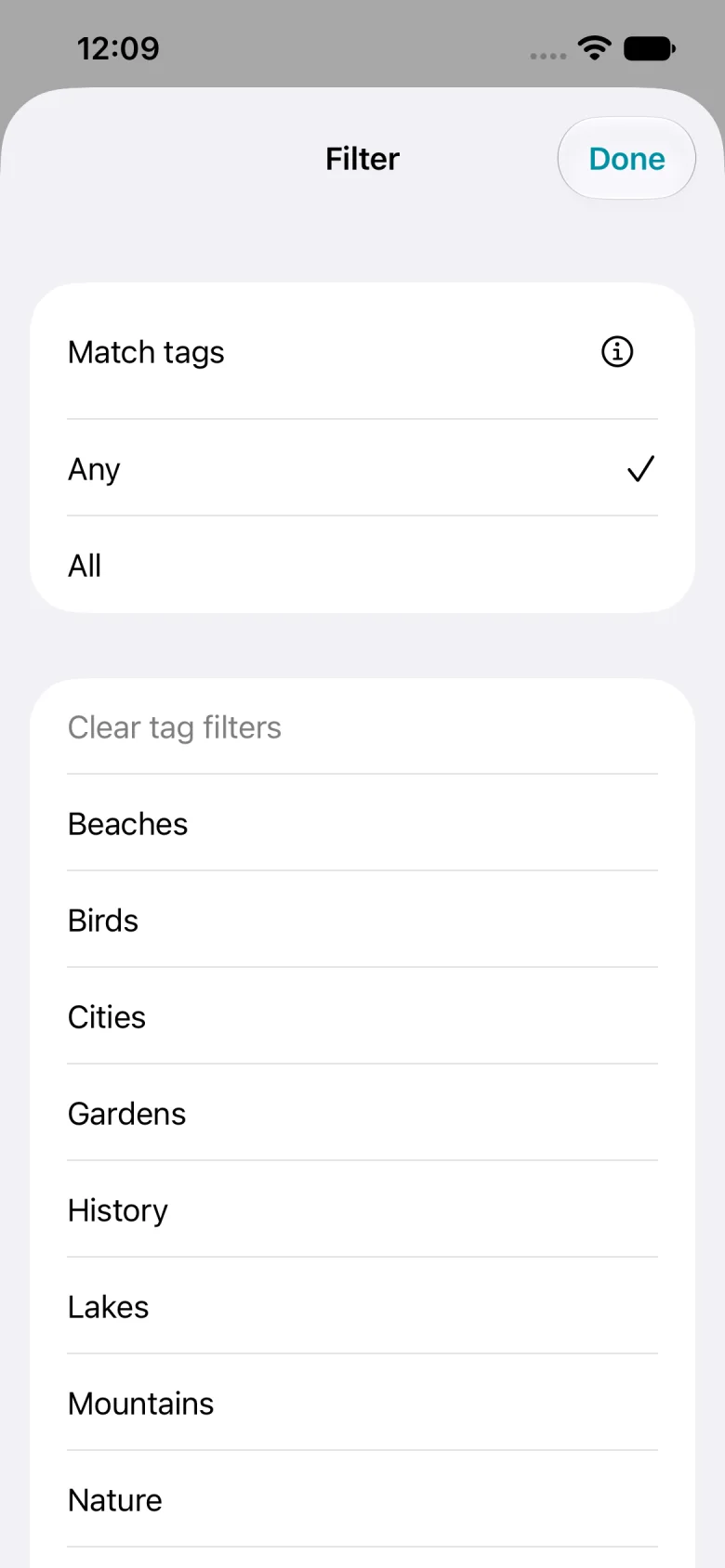
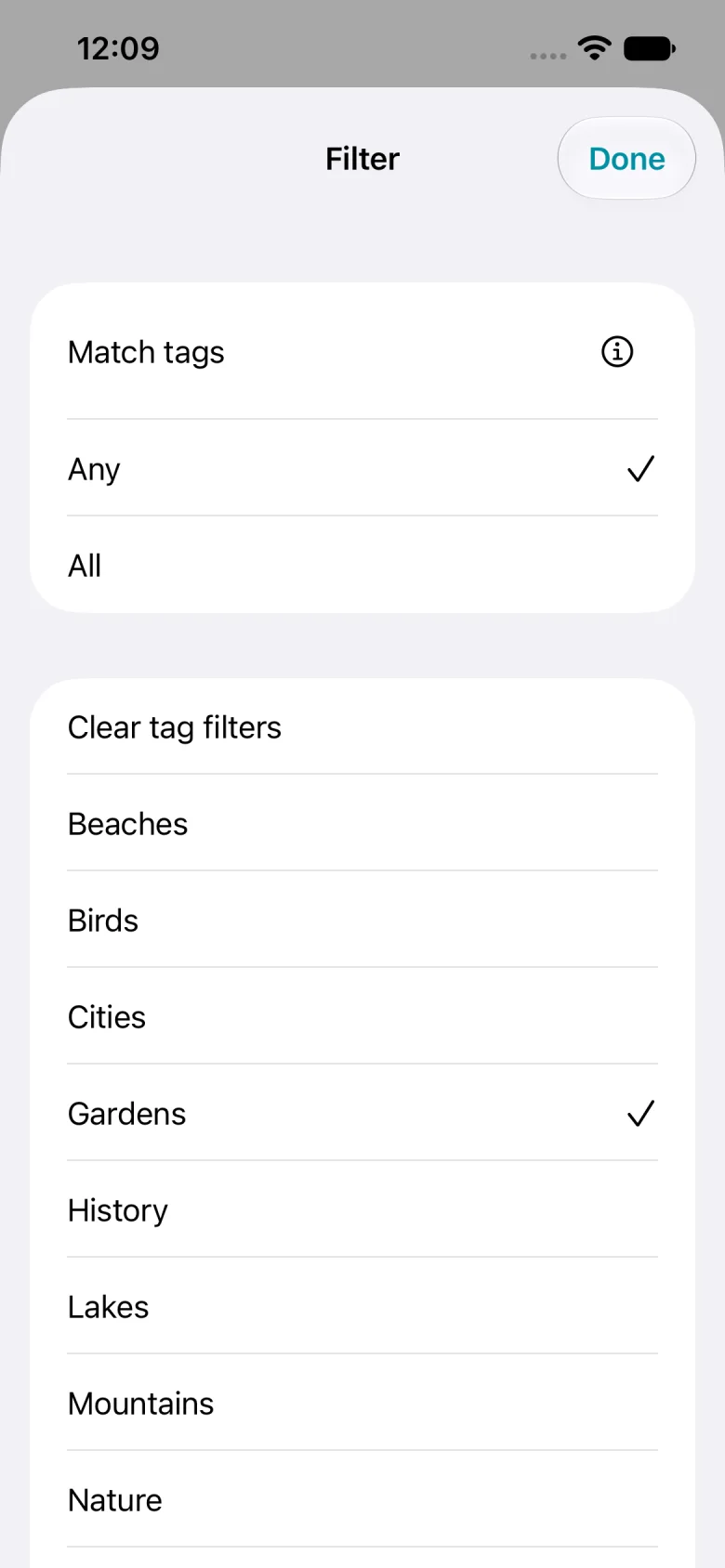
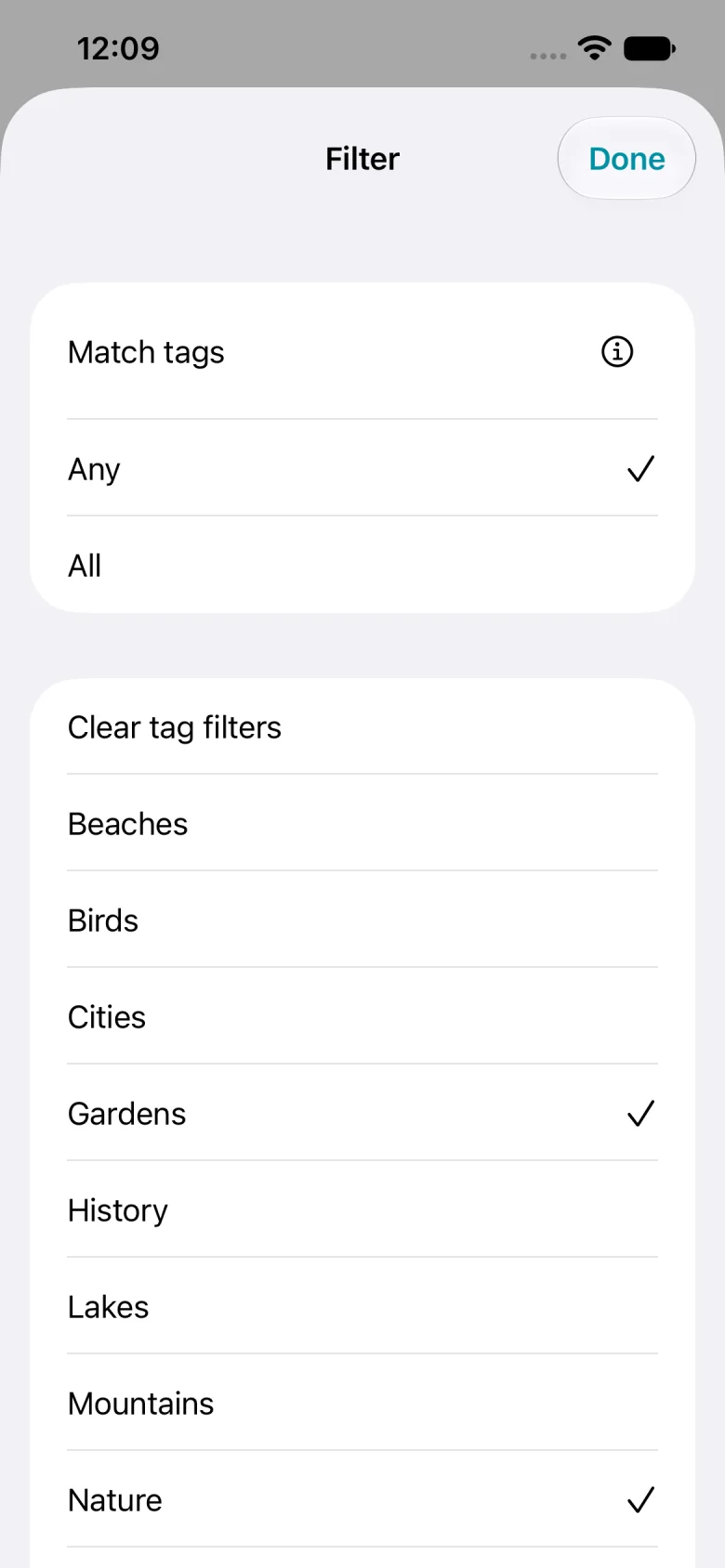
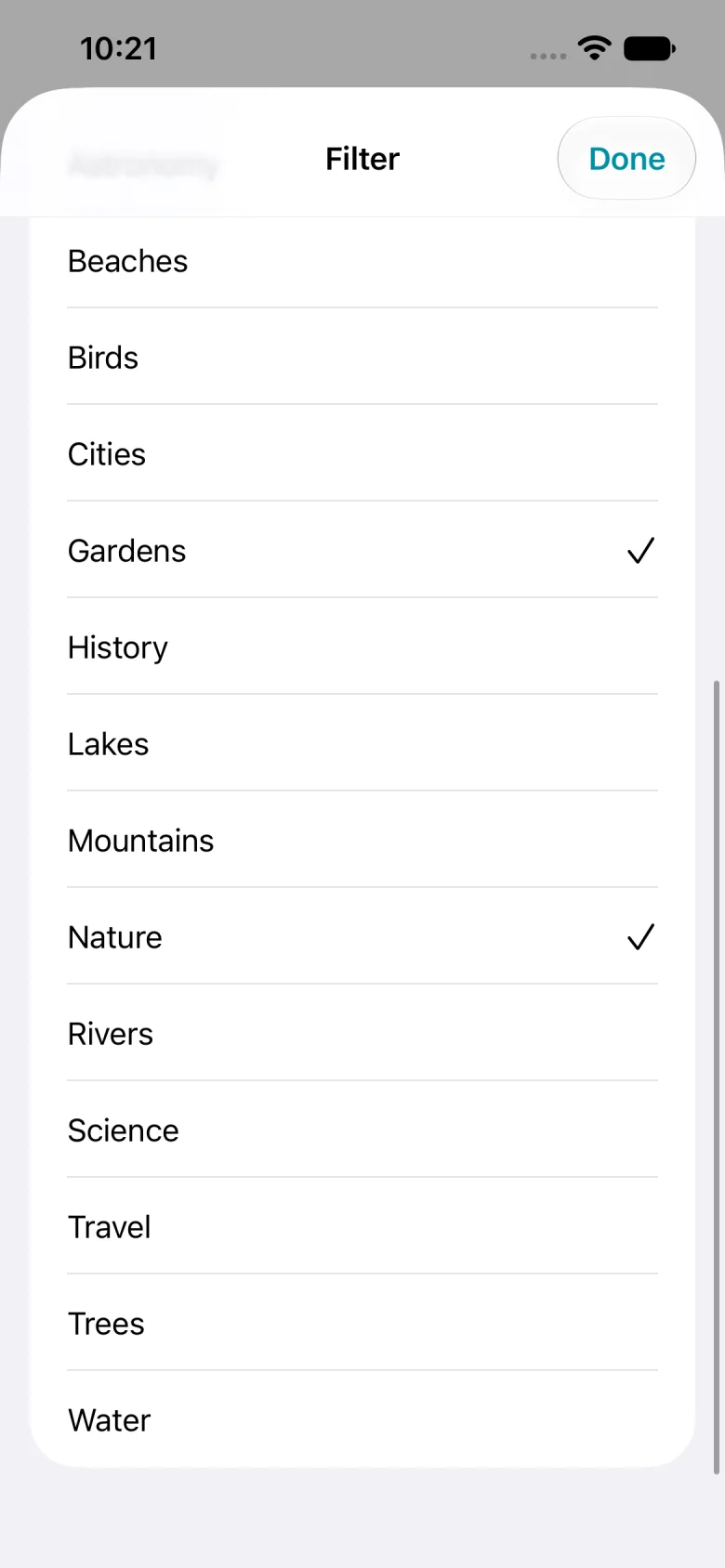
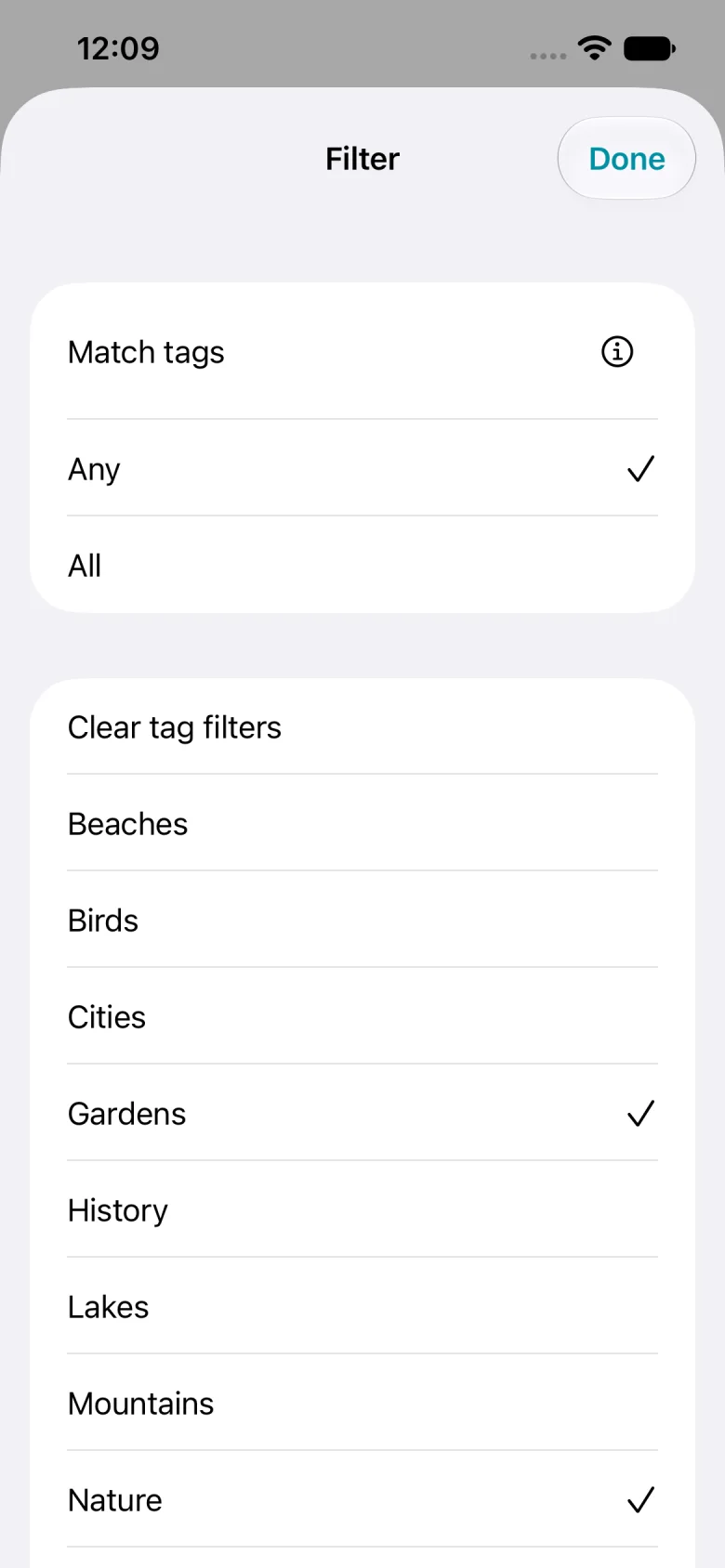
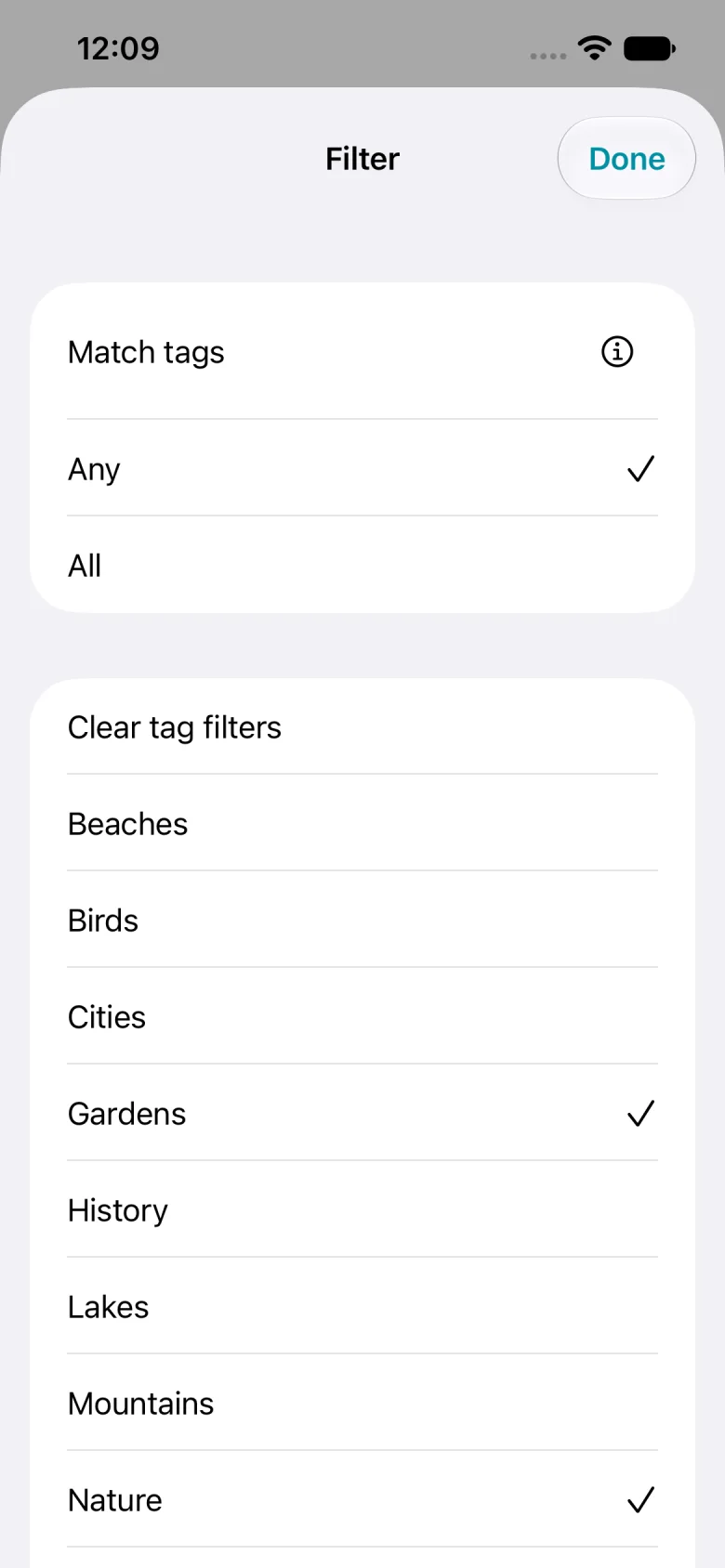
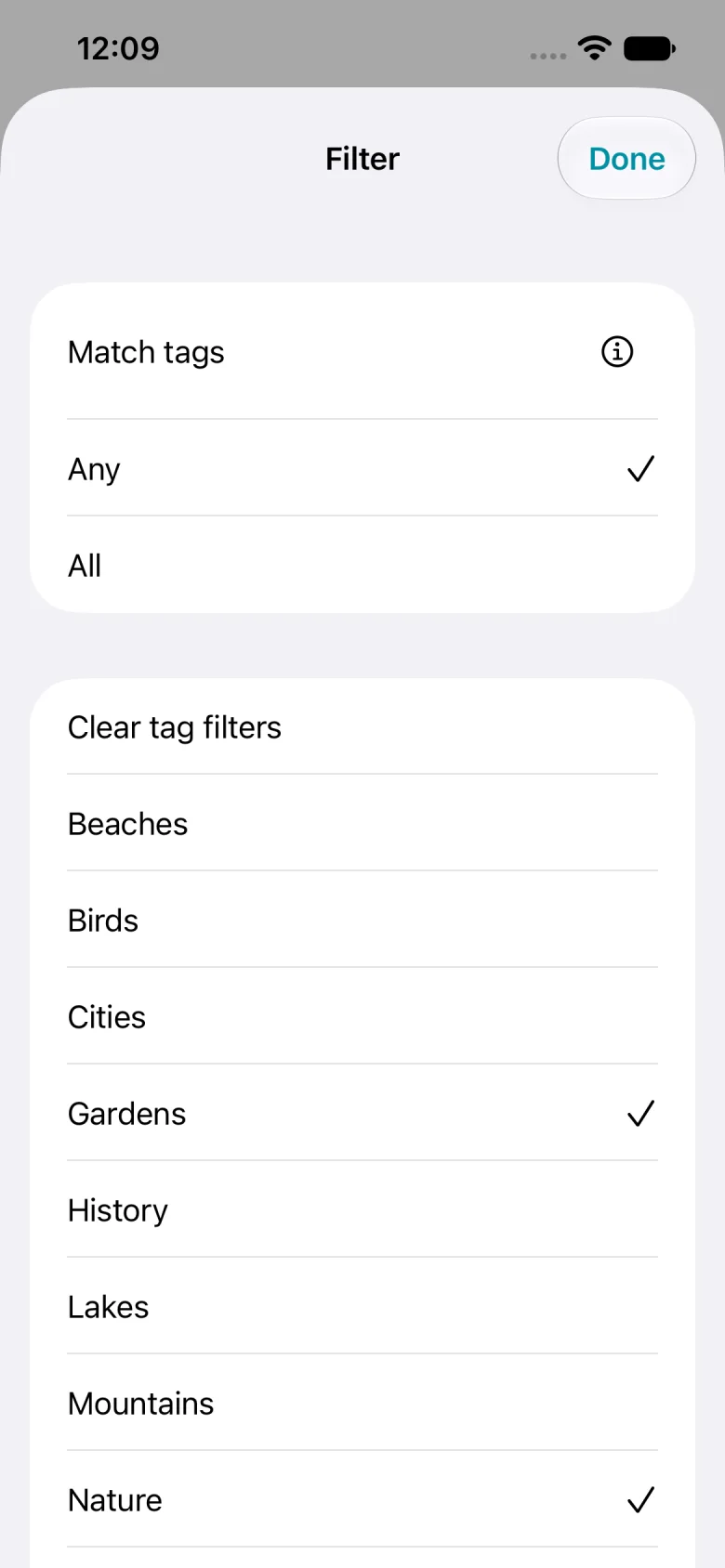
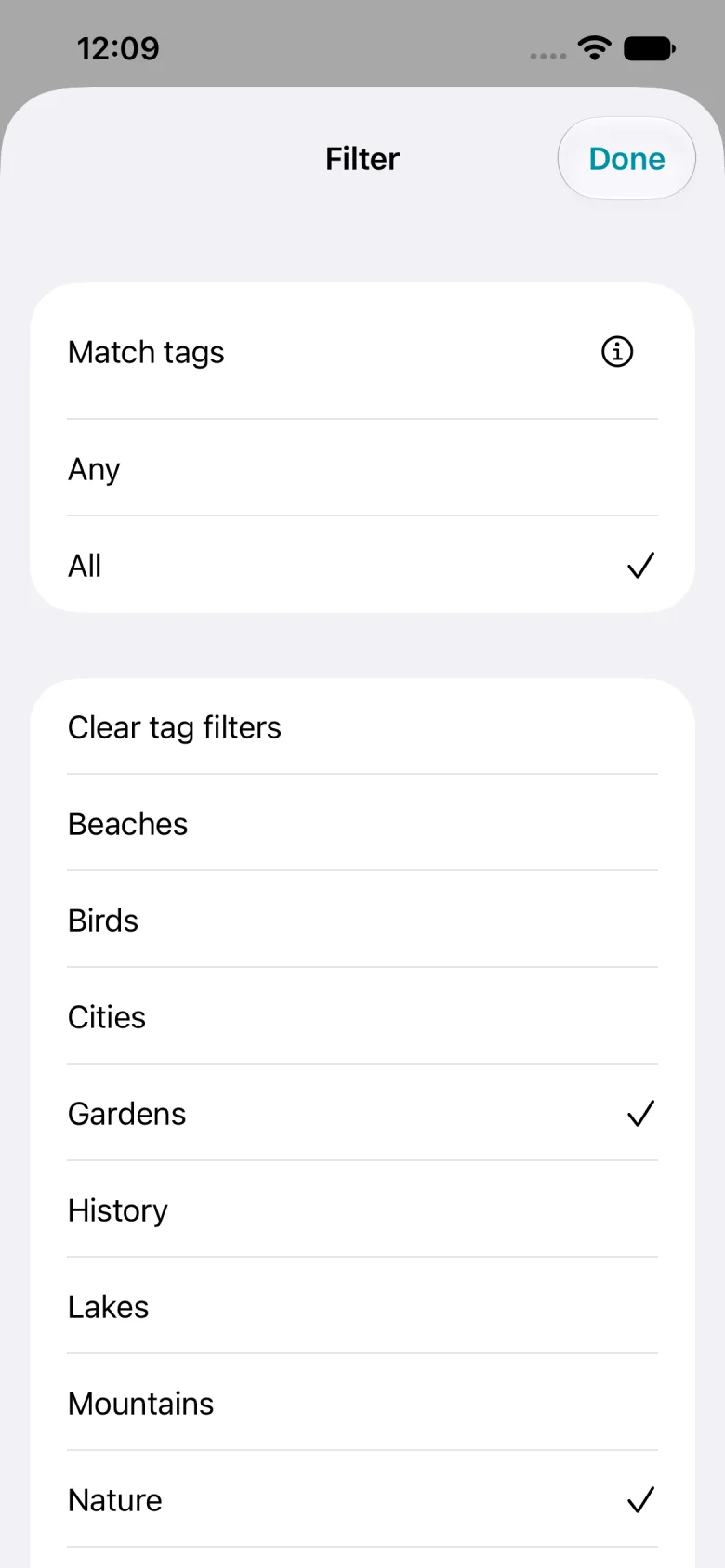
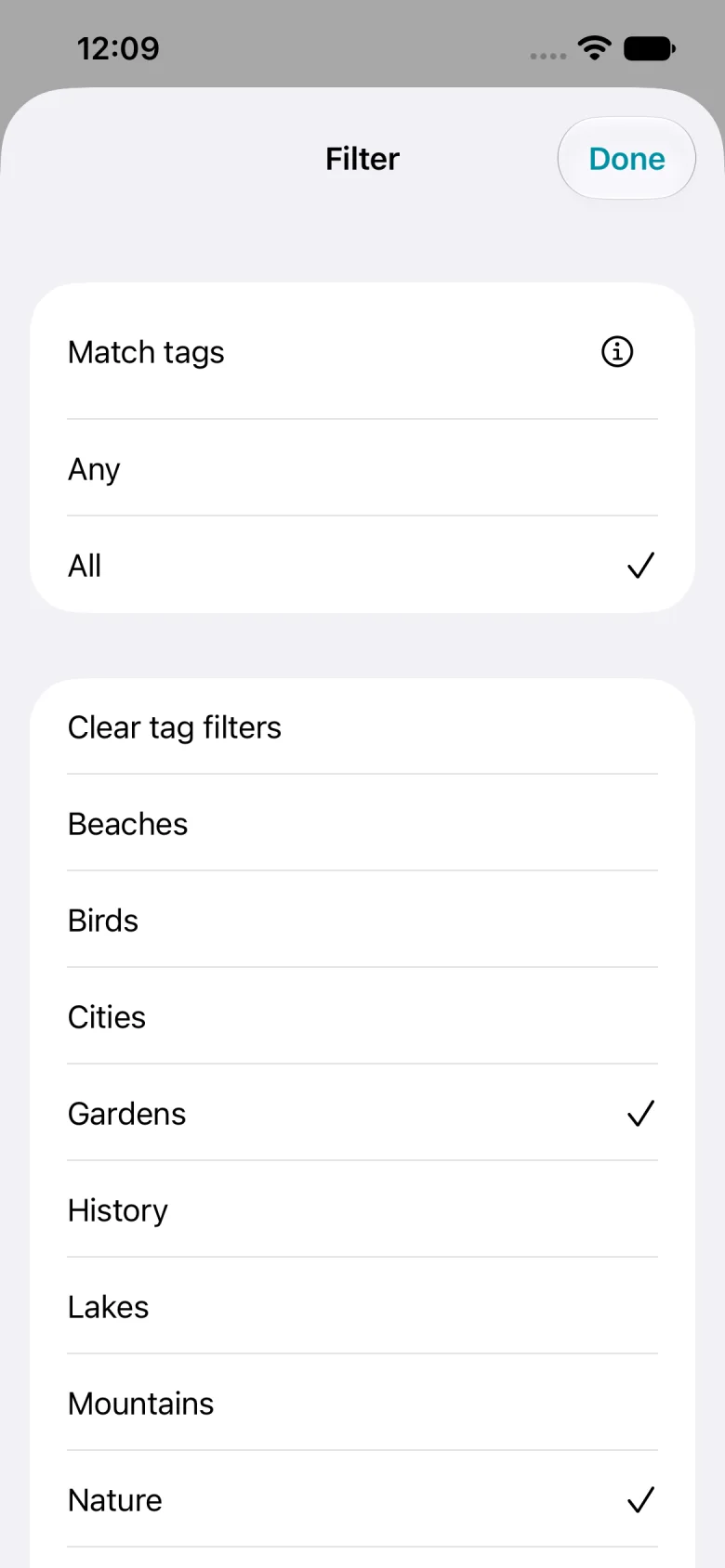
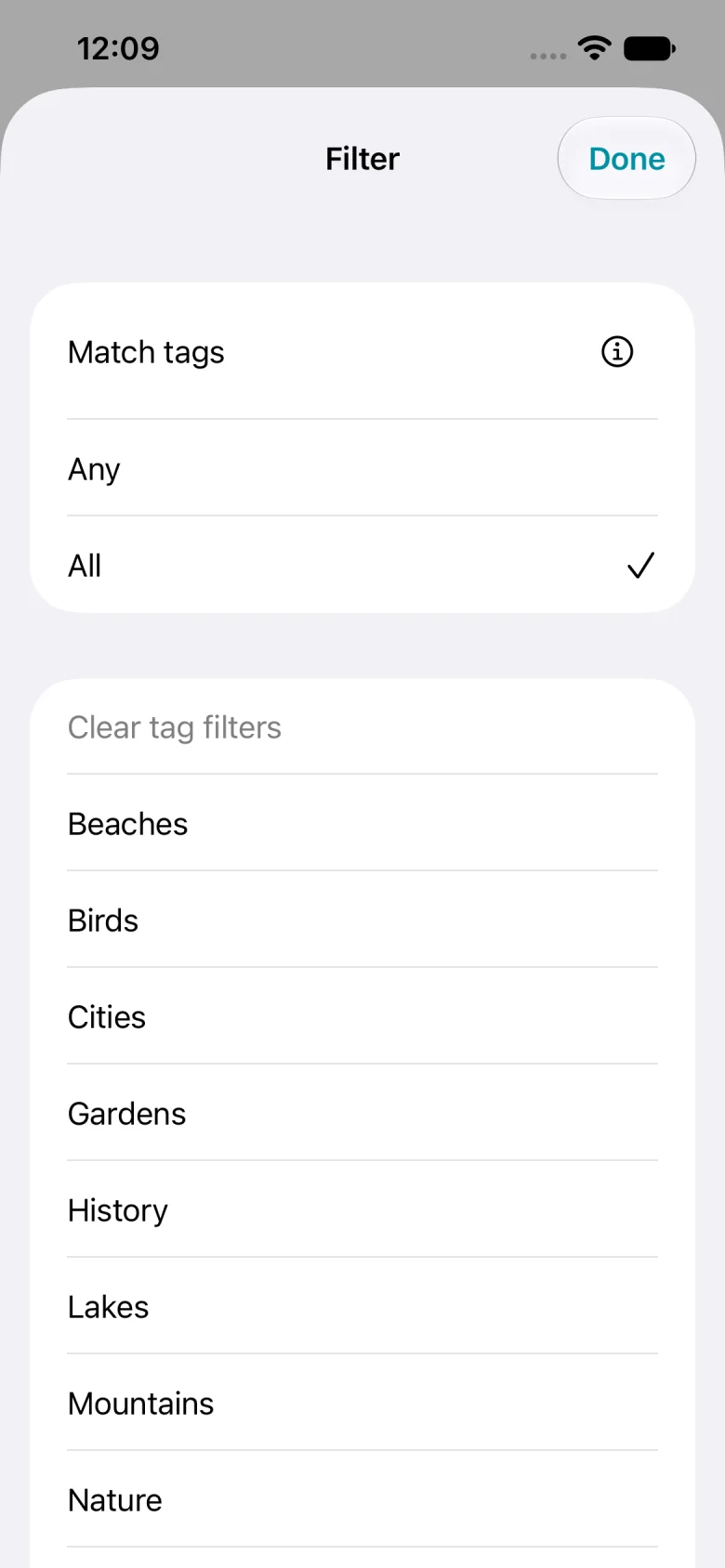
Keep, change, or clear the suggested tag, or select an existing tag below. Then tap Import.
The summary shows one video imported and three files skipped. Tap Done to see the video.
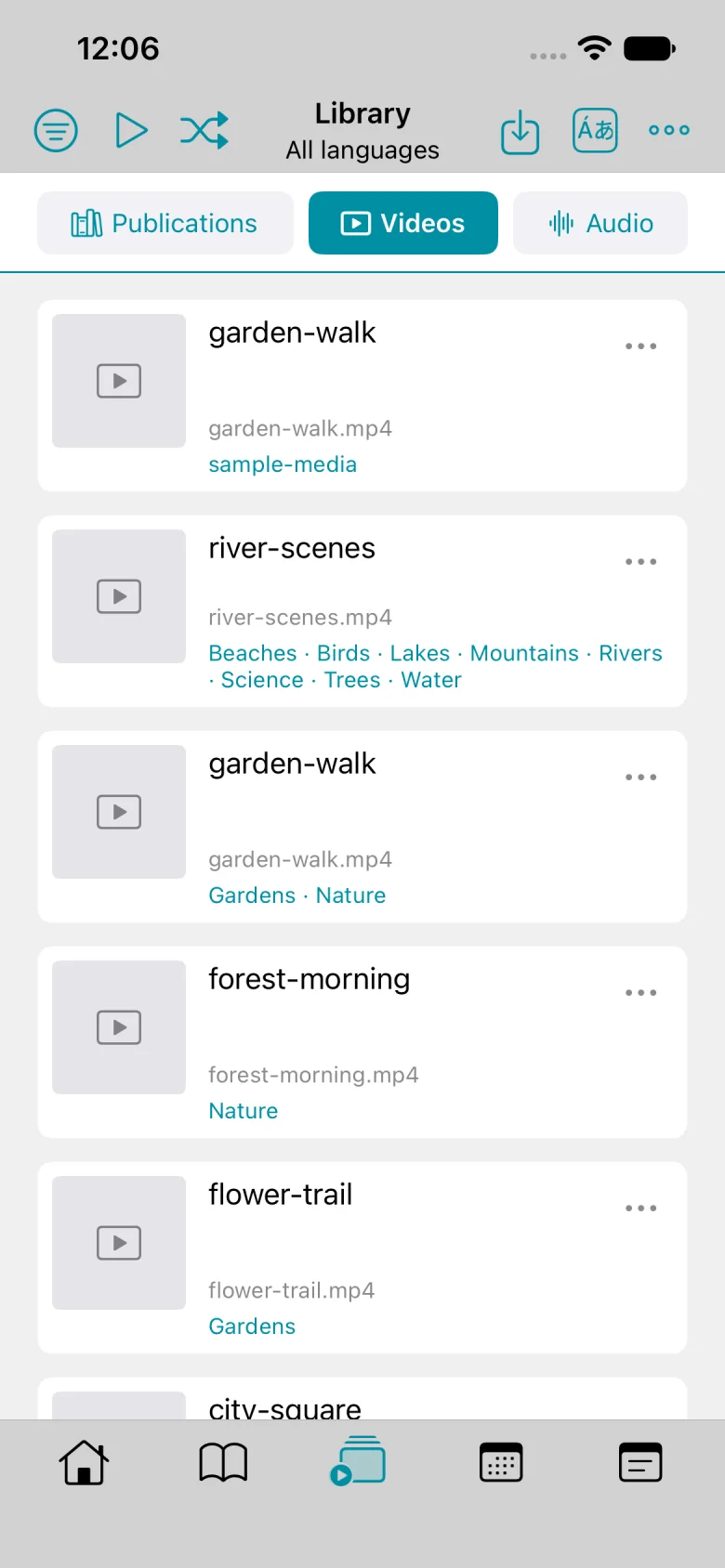
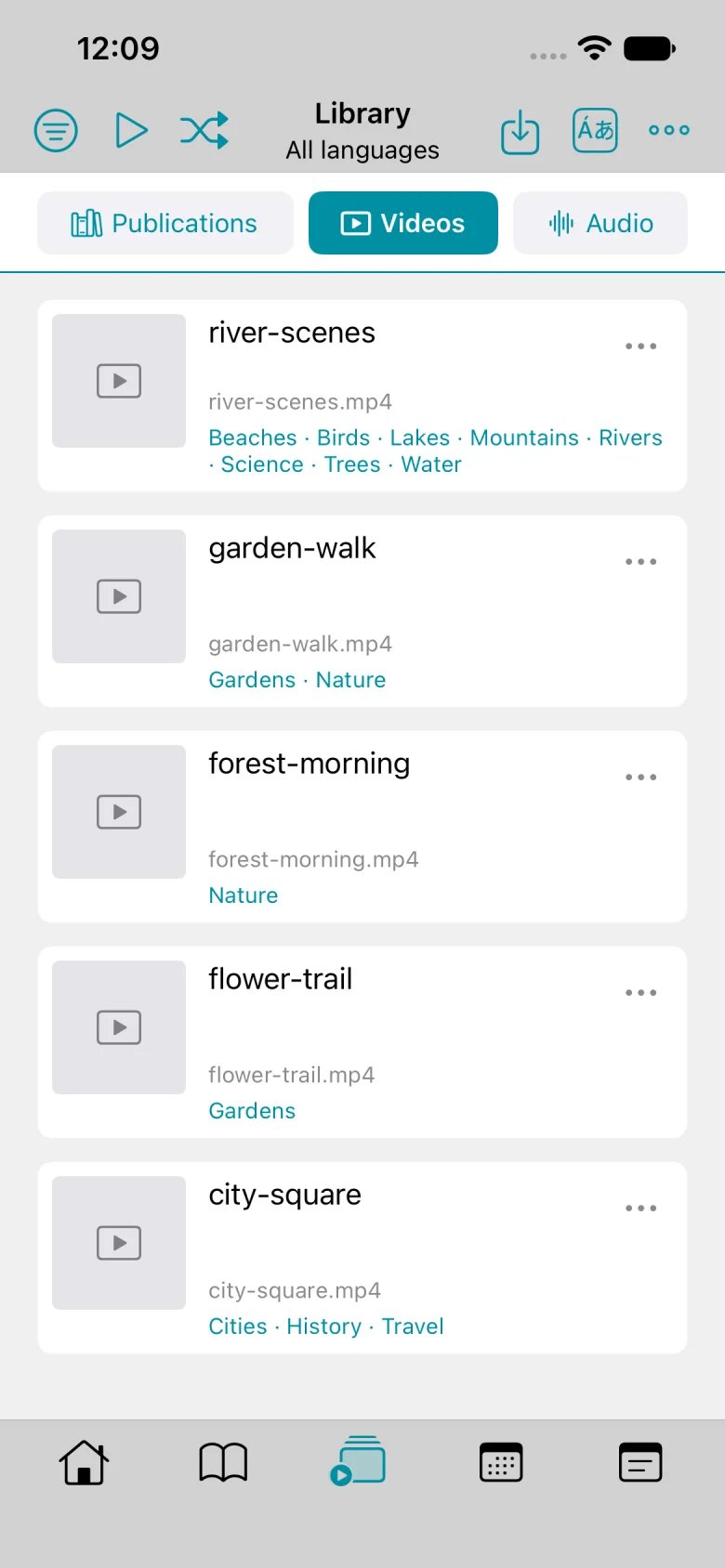
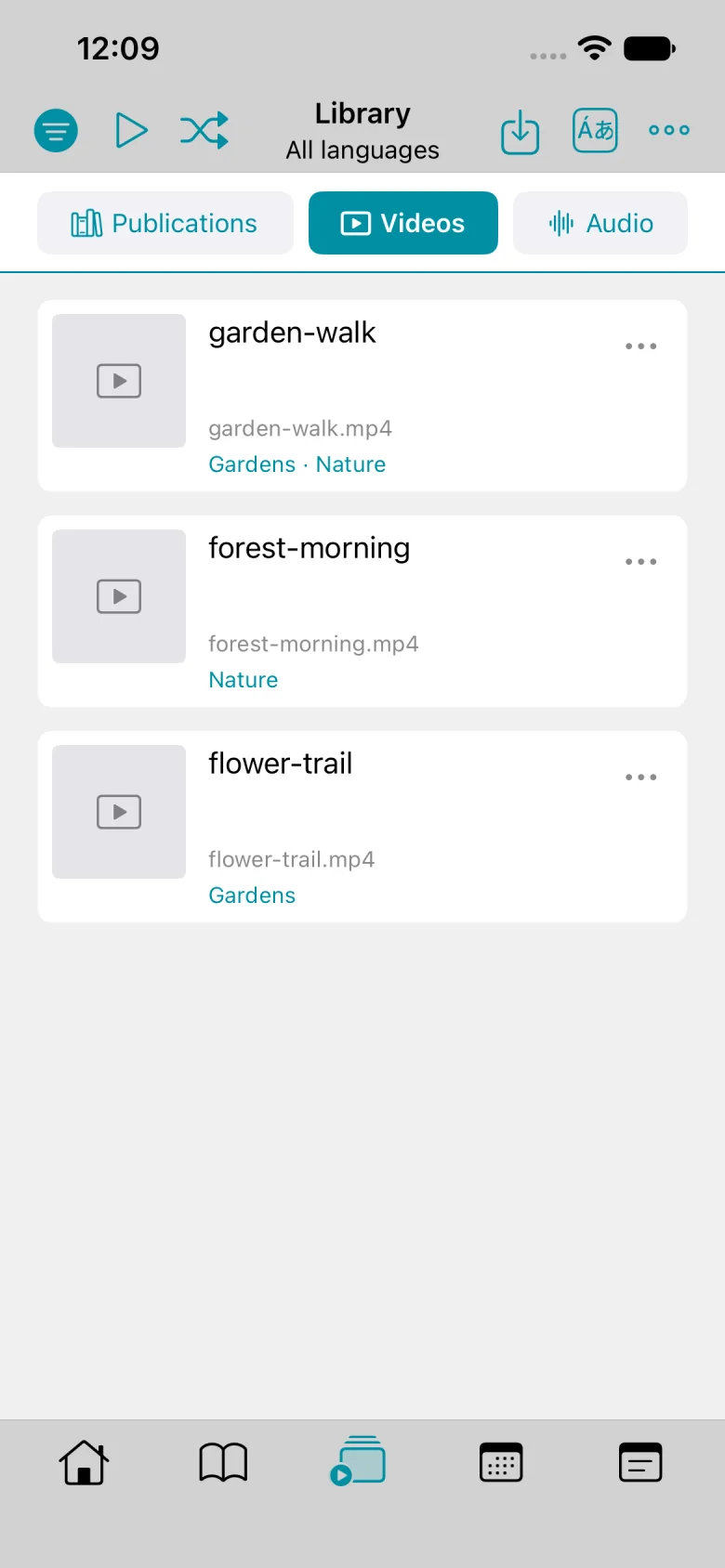
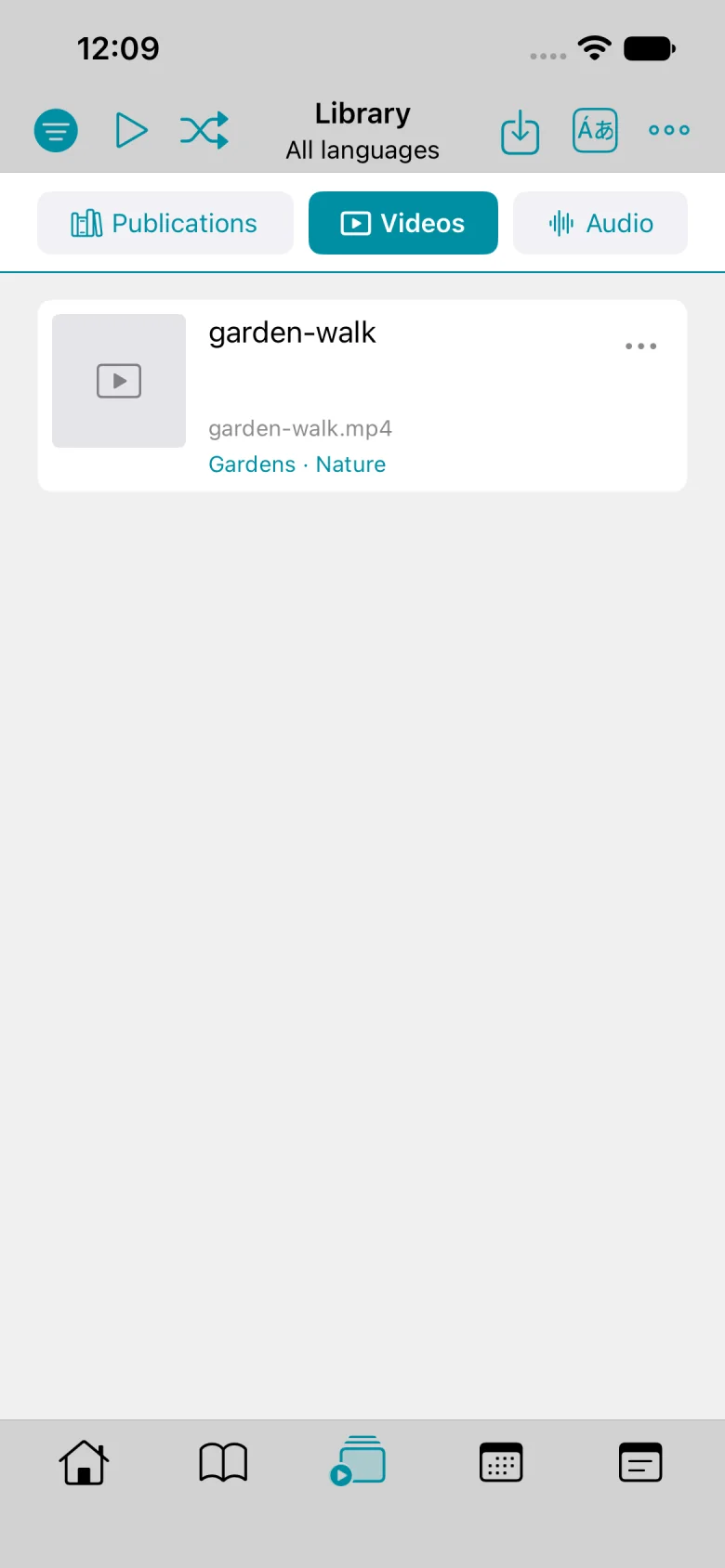
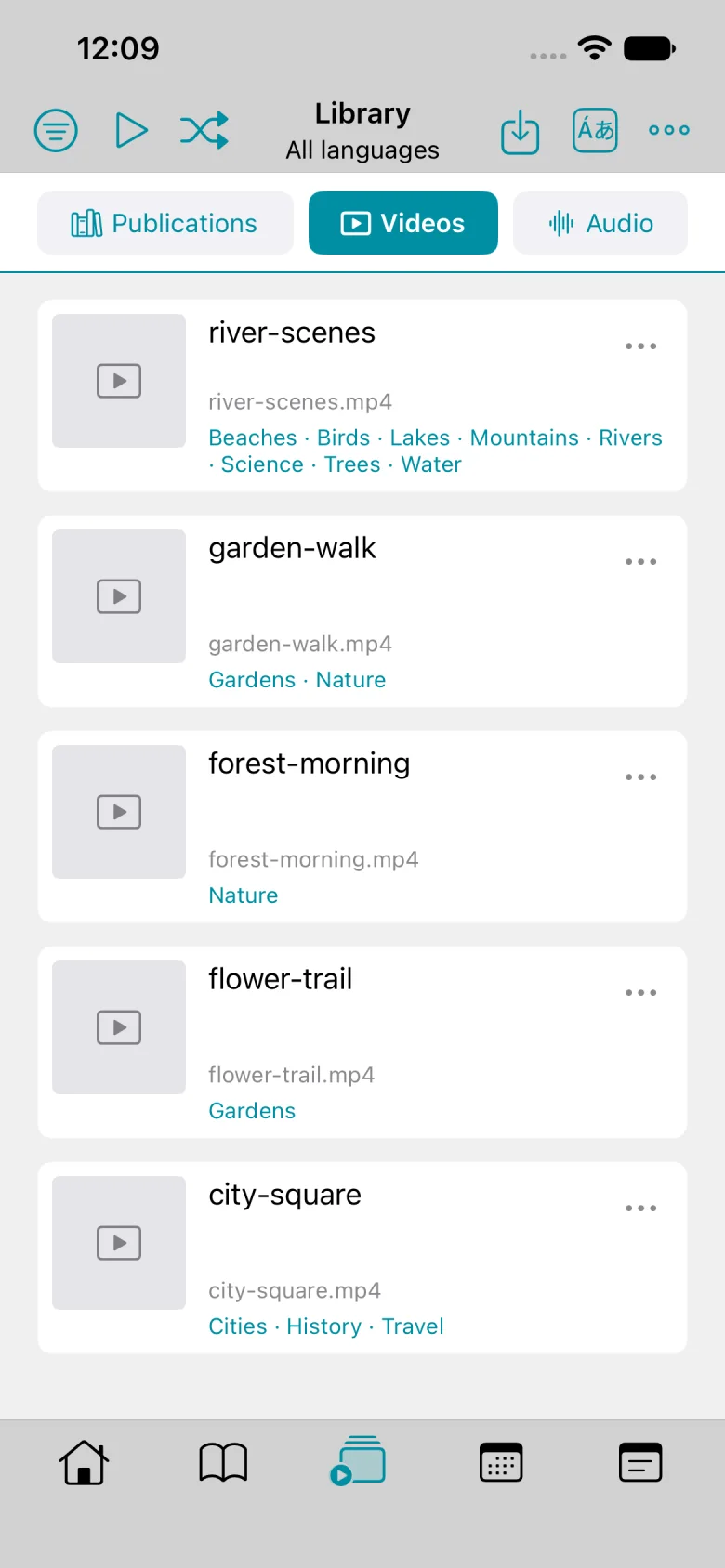
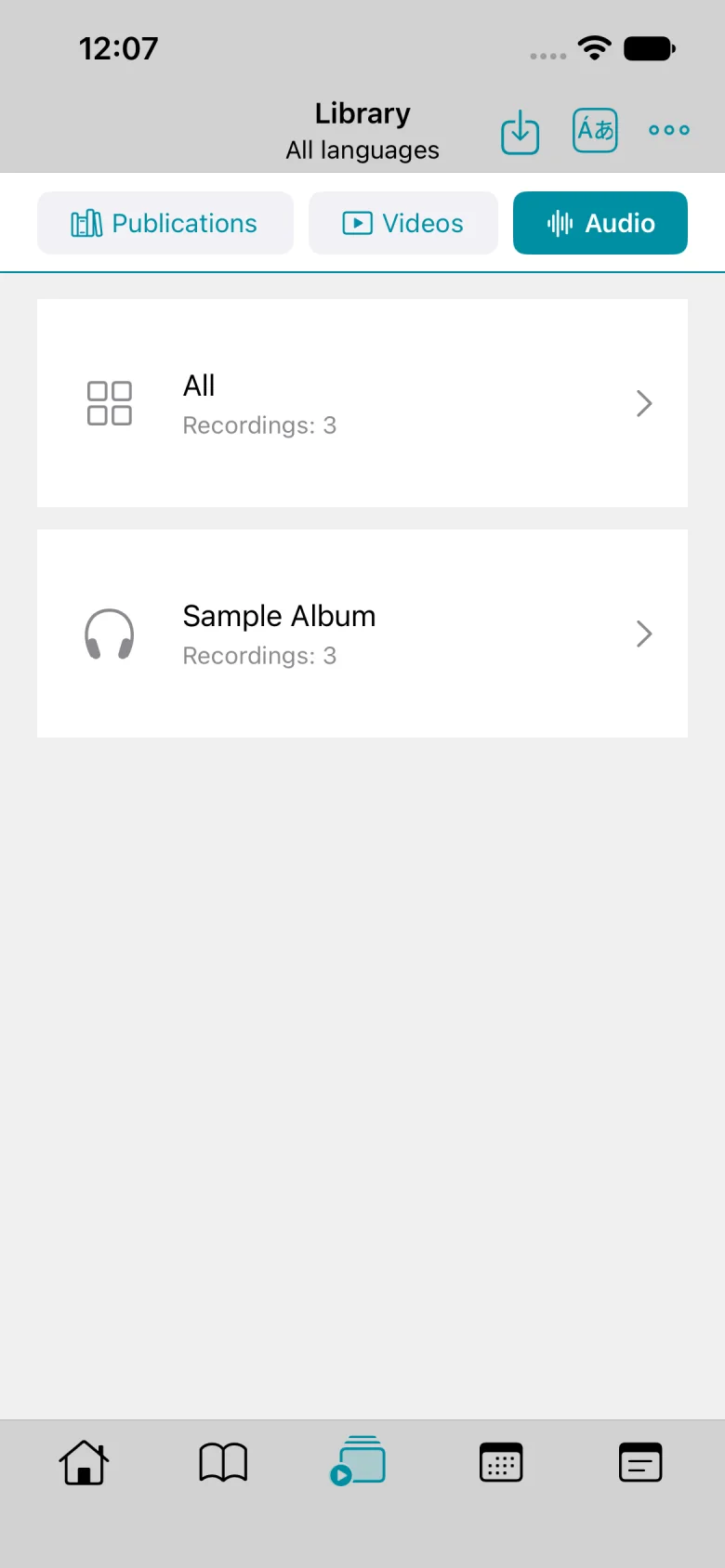
EpubLib opens Videos. The imported clip carries the sample-media tag.
Written steps
Tap the import icon on any panel and choose Publications (EPUB and PDF), Videos (MP4), or Audio (MP3).
In Files, select one ZIP or select individual files of the chosen type. The example uses sample-media.zip, which bundles sample-book.epub and sample-book.pdf. Choose Publications to import both.
For videos, keep, change, or clear the suggested tag, or select an existing tag below. Then tap Import.
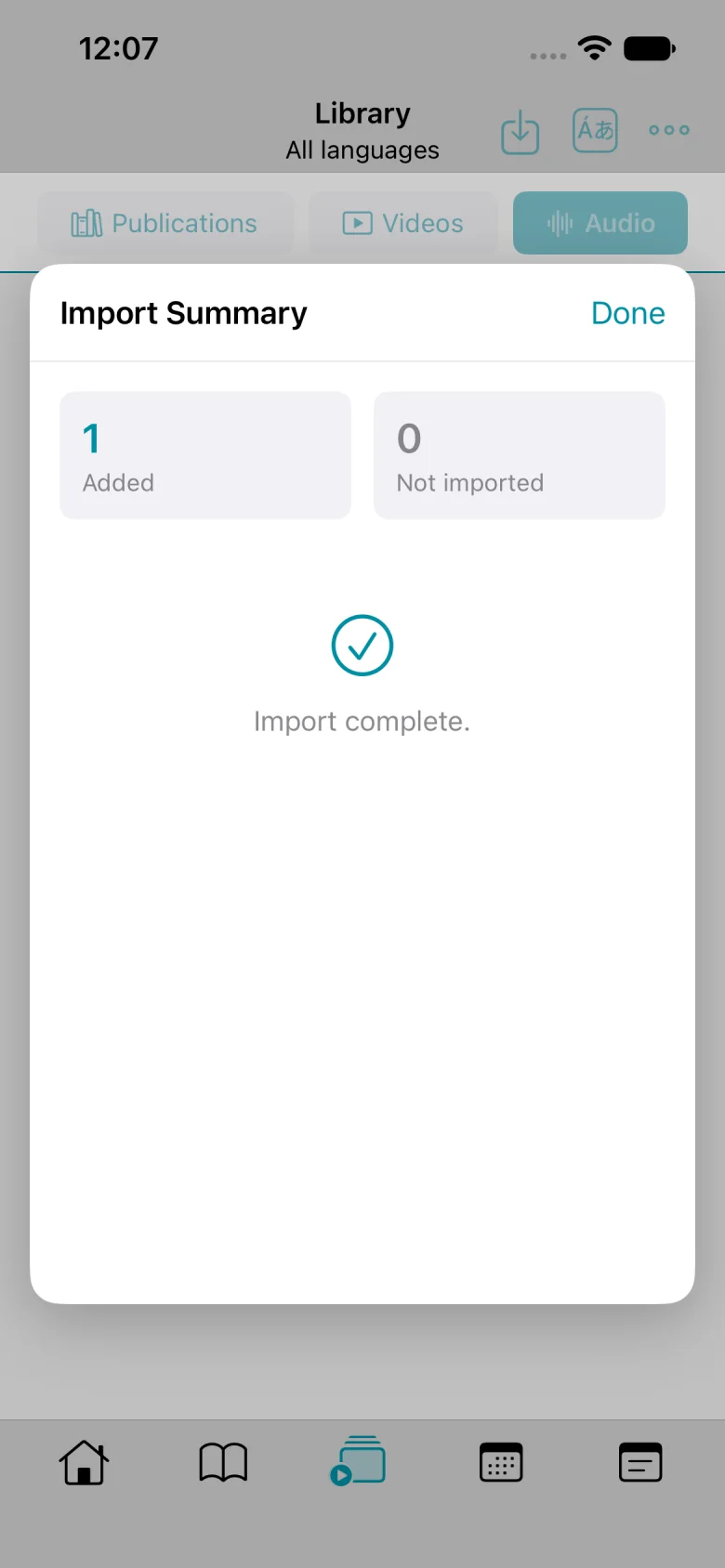
Check the import summary. If you choose Videos, EpubLib imports garden-walk.mp4 and reports the EPUB, PDF, and MP3 as skipped.
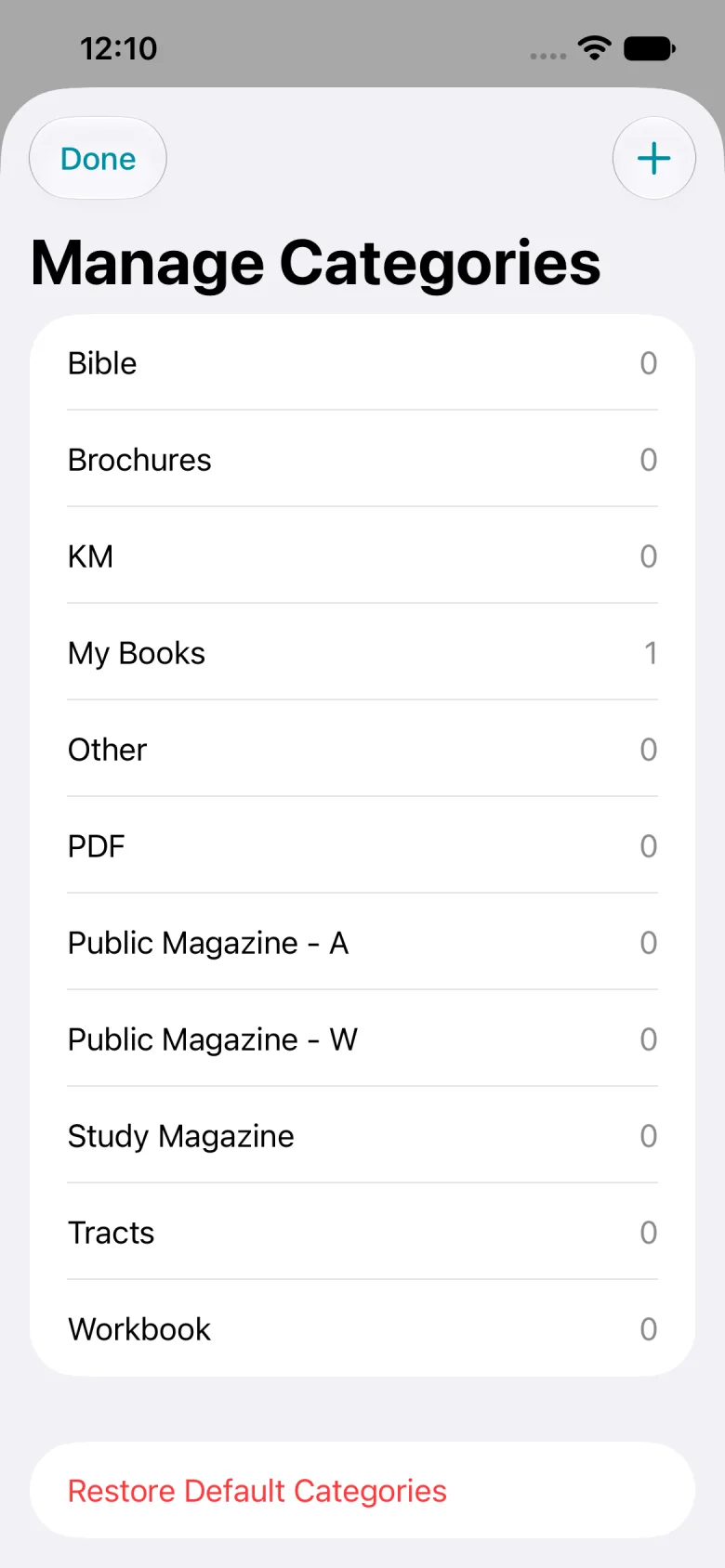
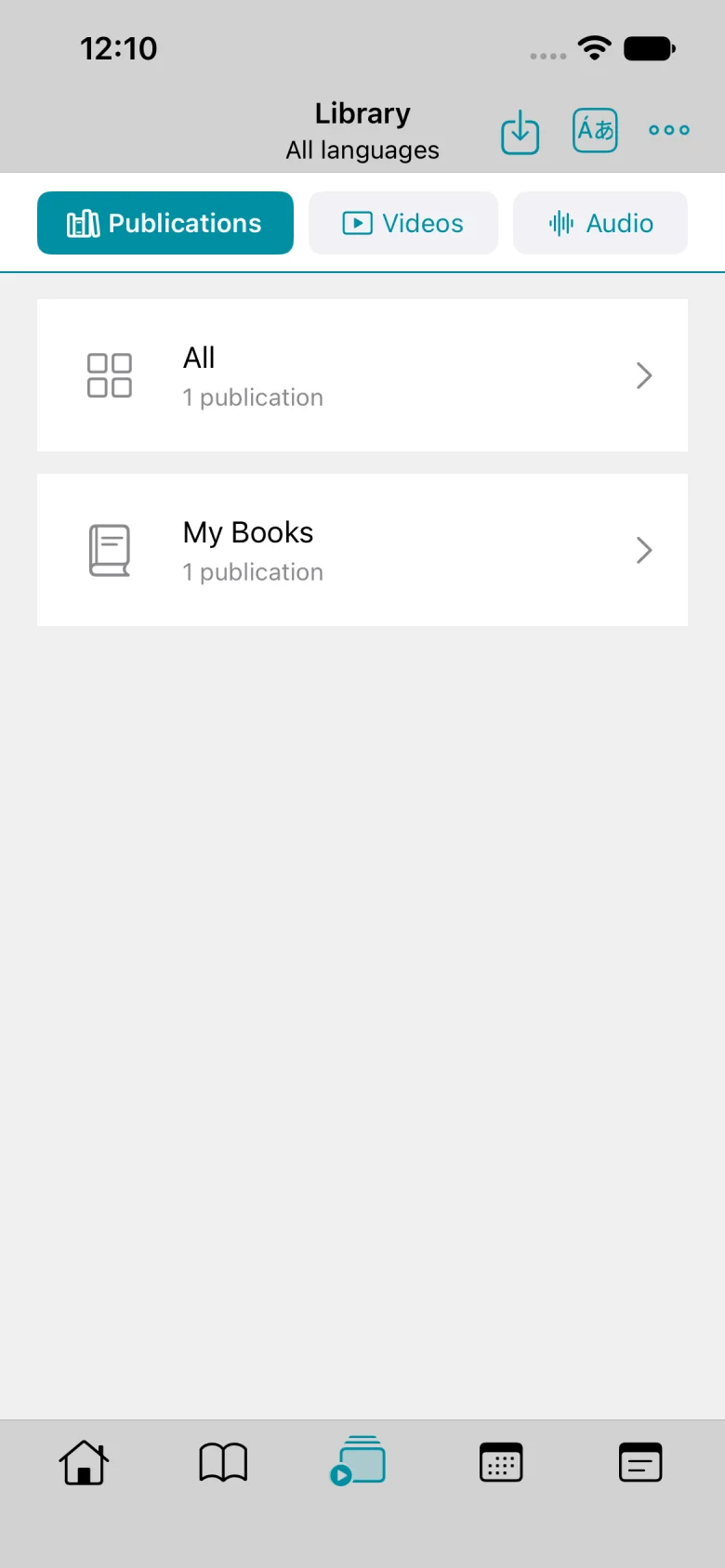
My Books appears in the list. Tap + to add a category.
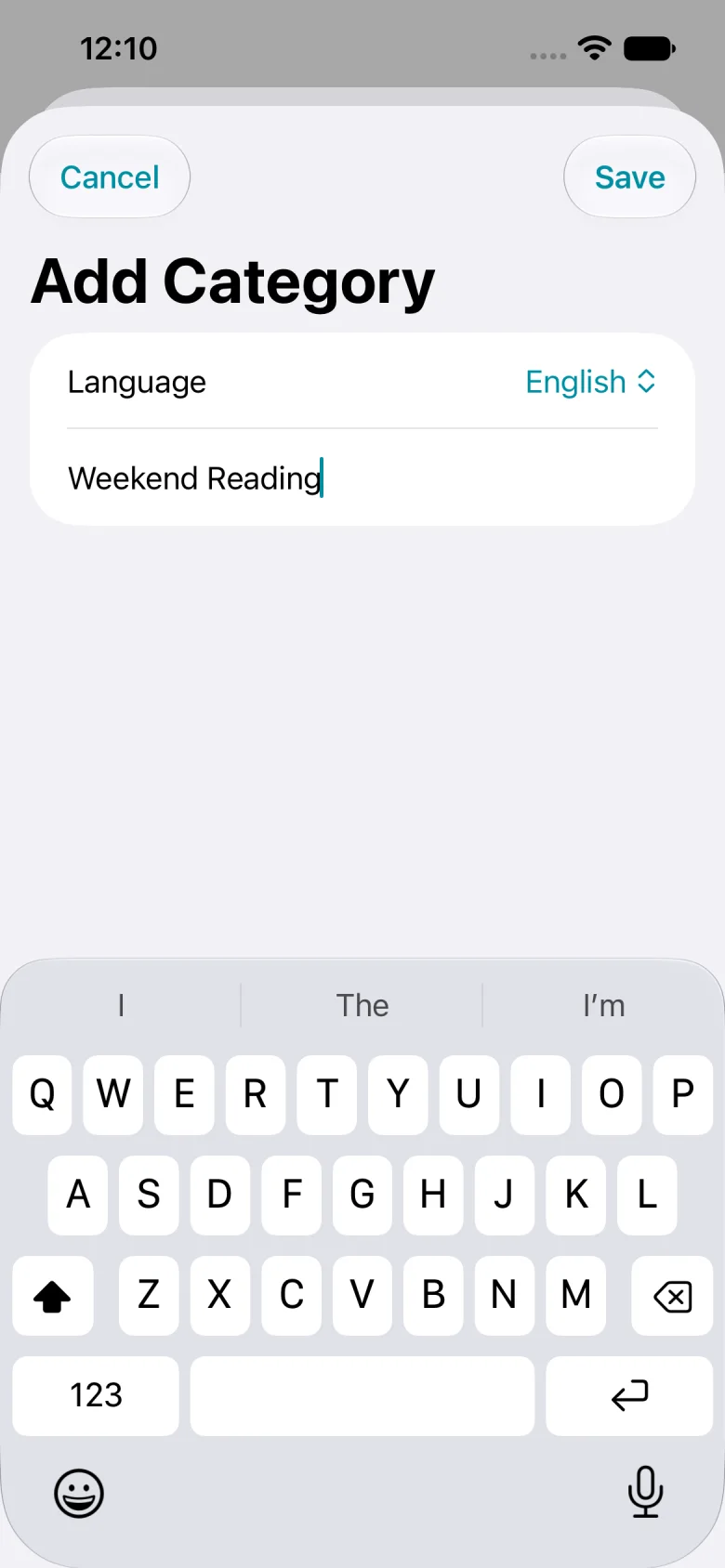
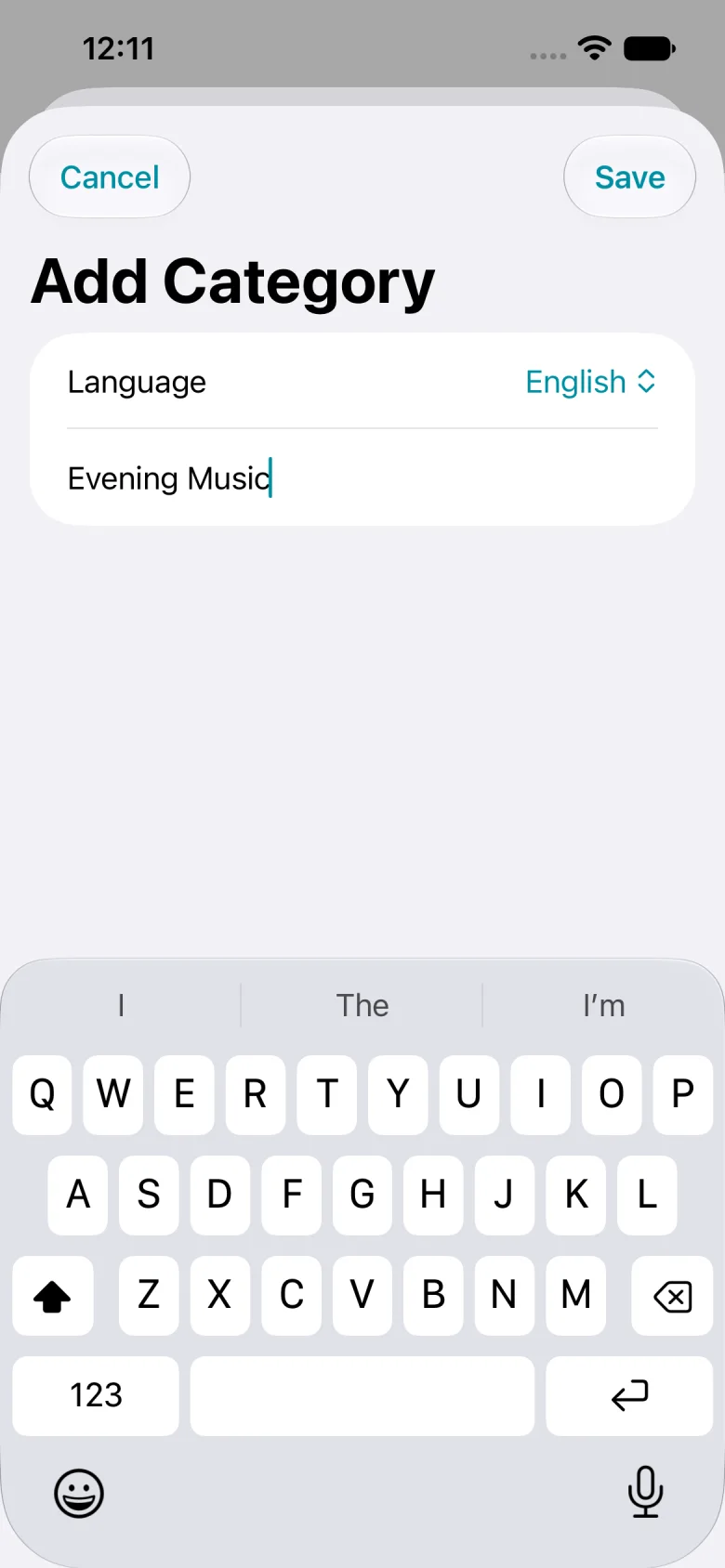
Enter Weekend Reading, then tap Save.
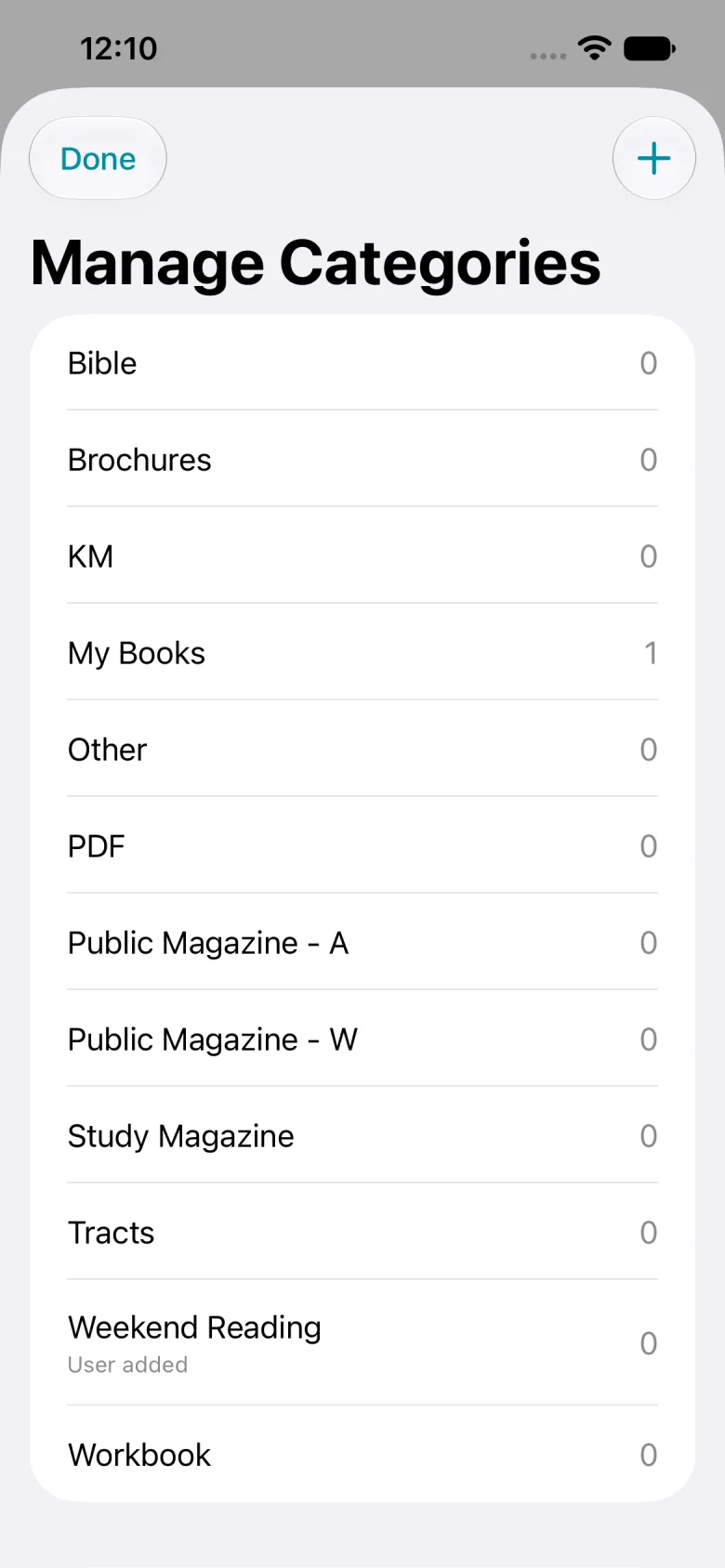
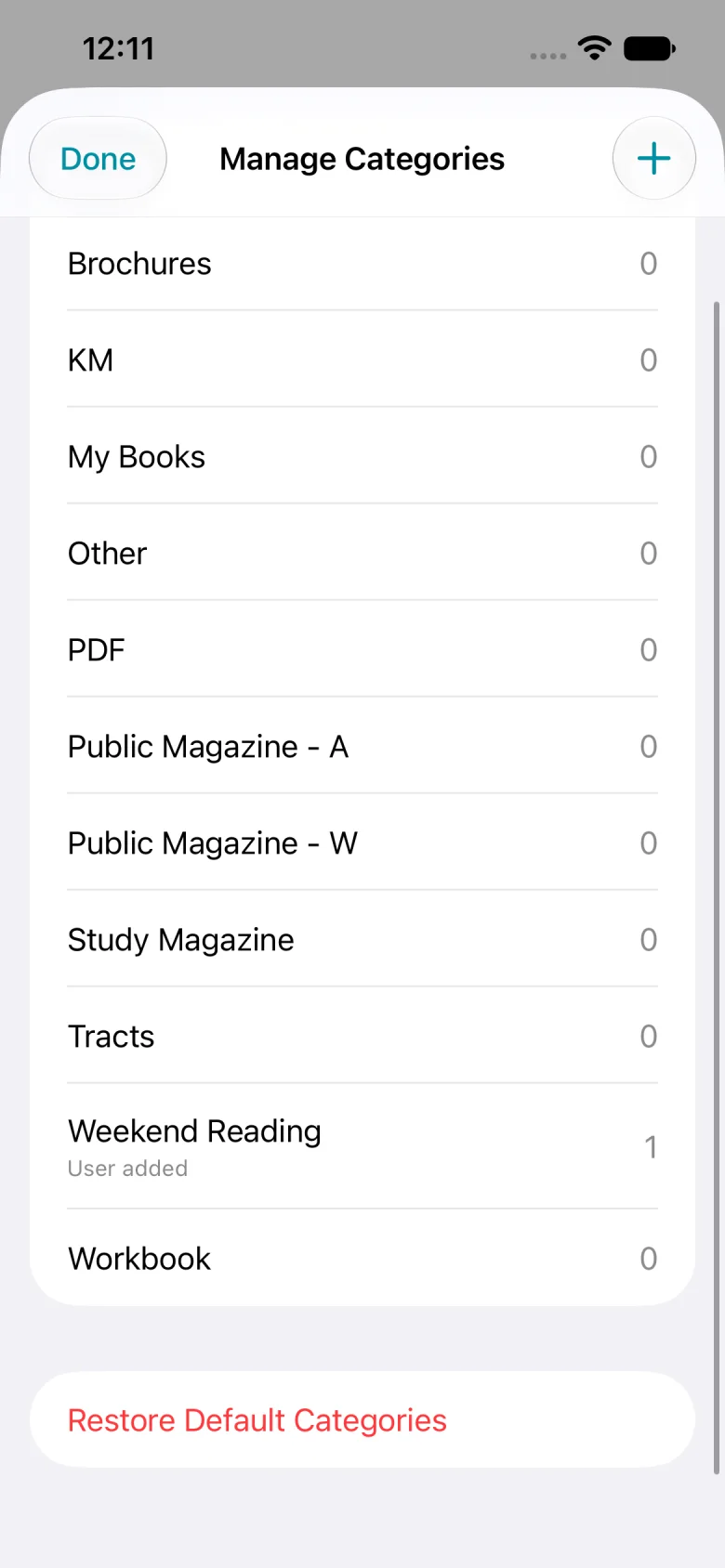
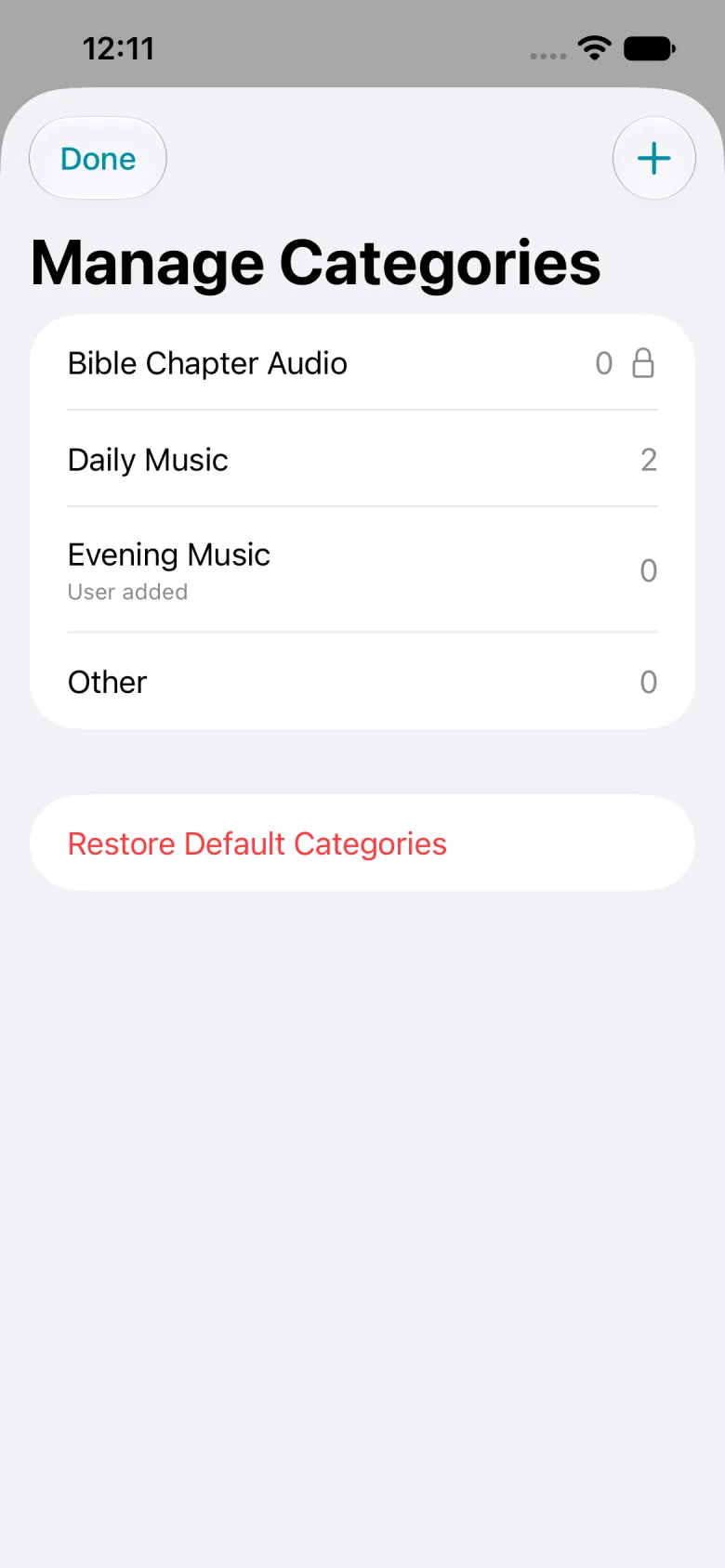
Weekend Reading appears as a user-added category. Tap Done to return to Publications.
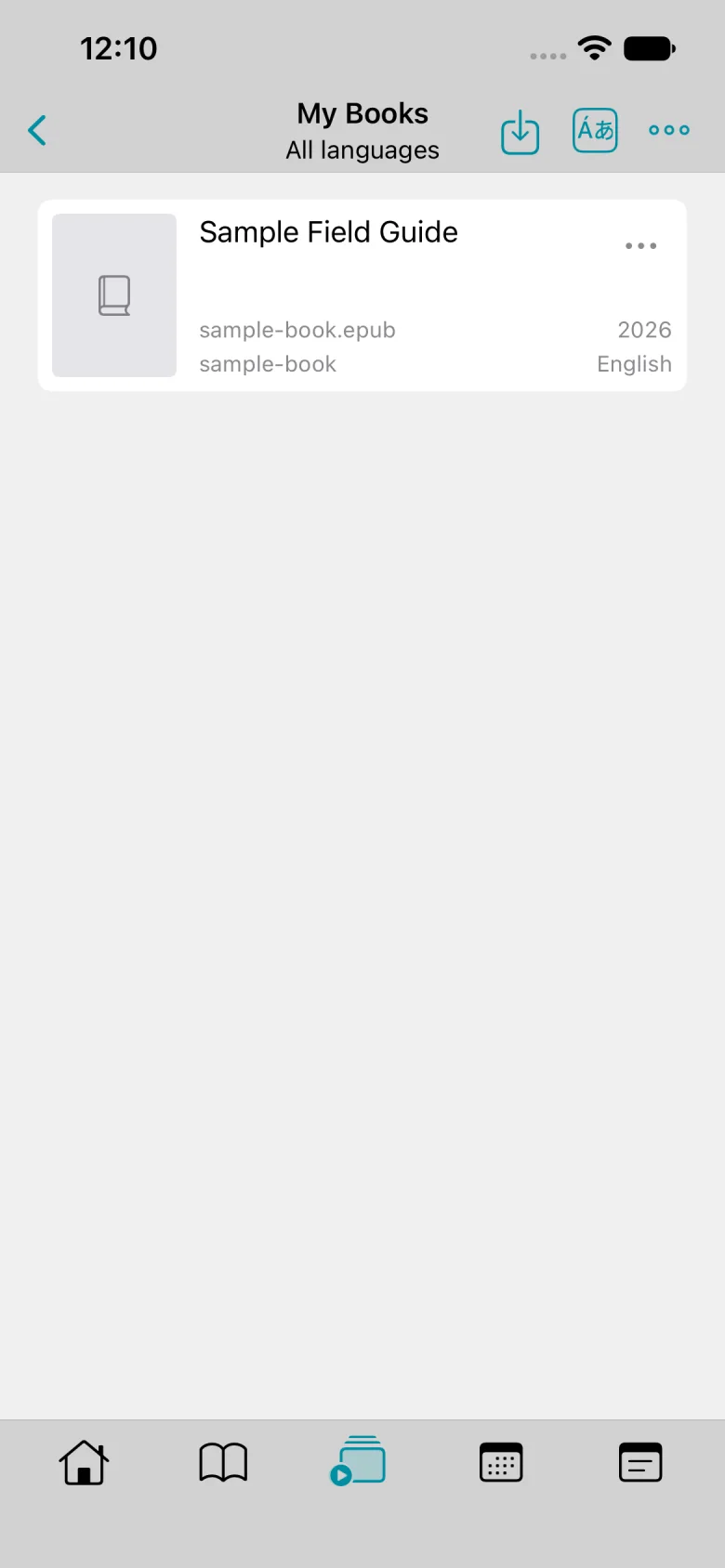
Open My Books.
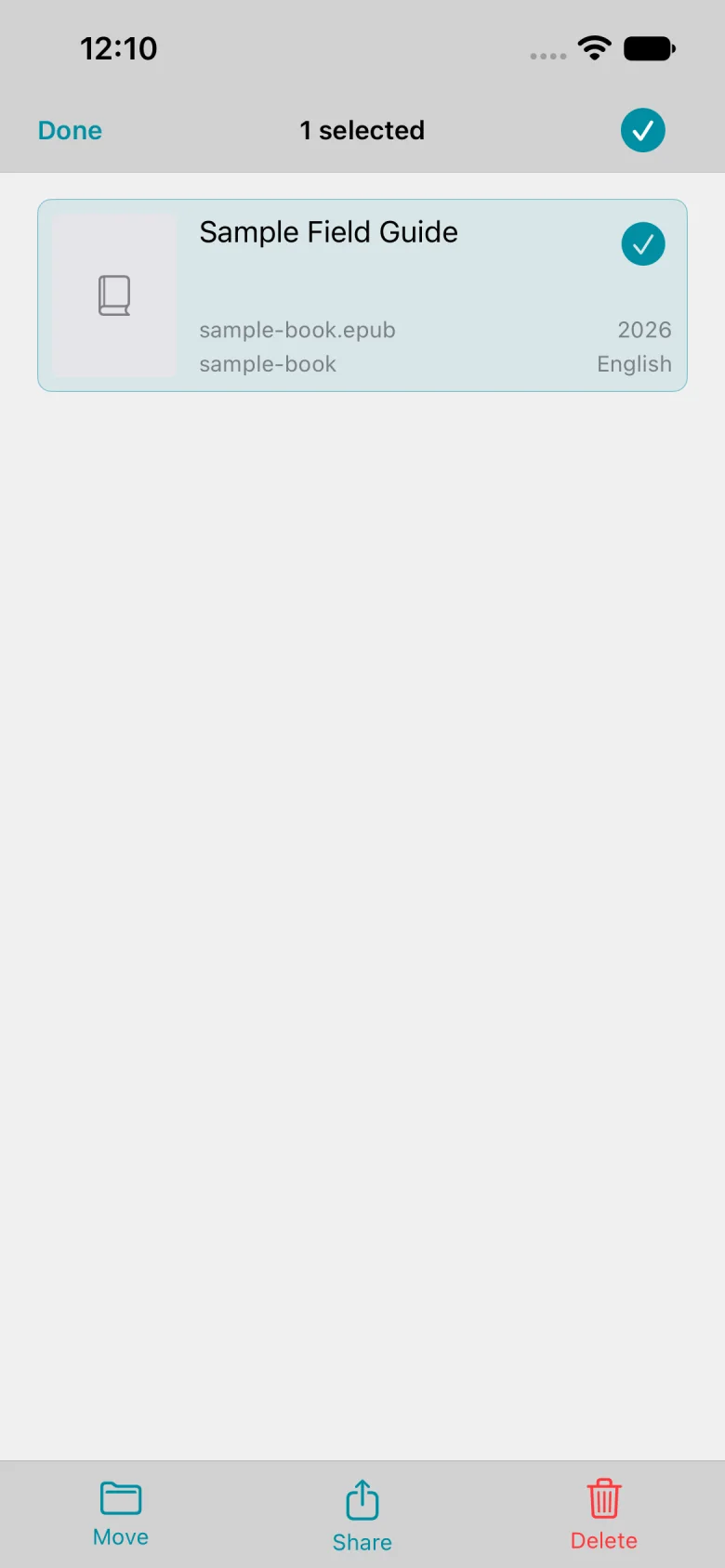
Touch and hold the sample publication to select it.
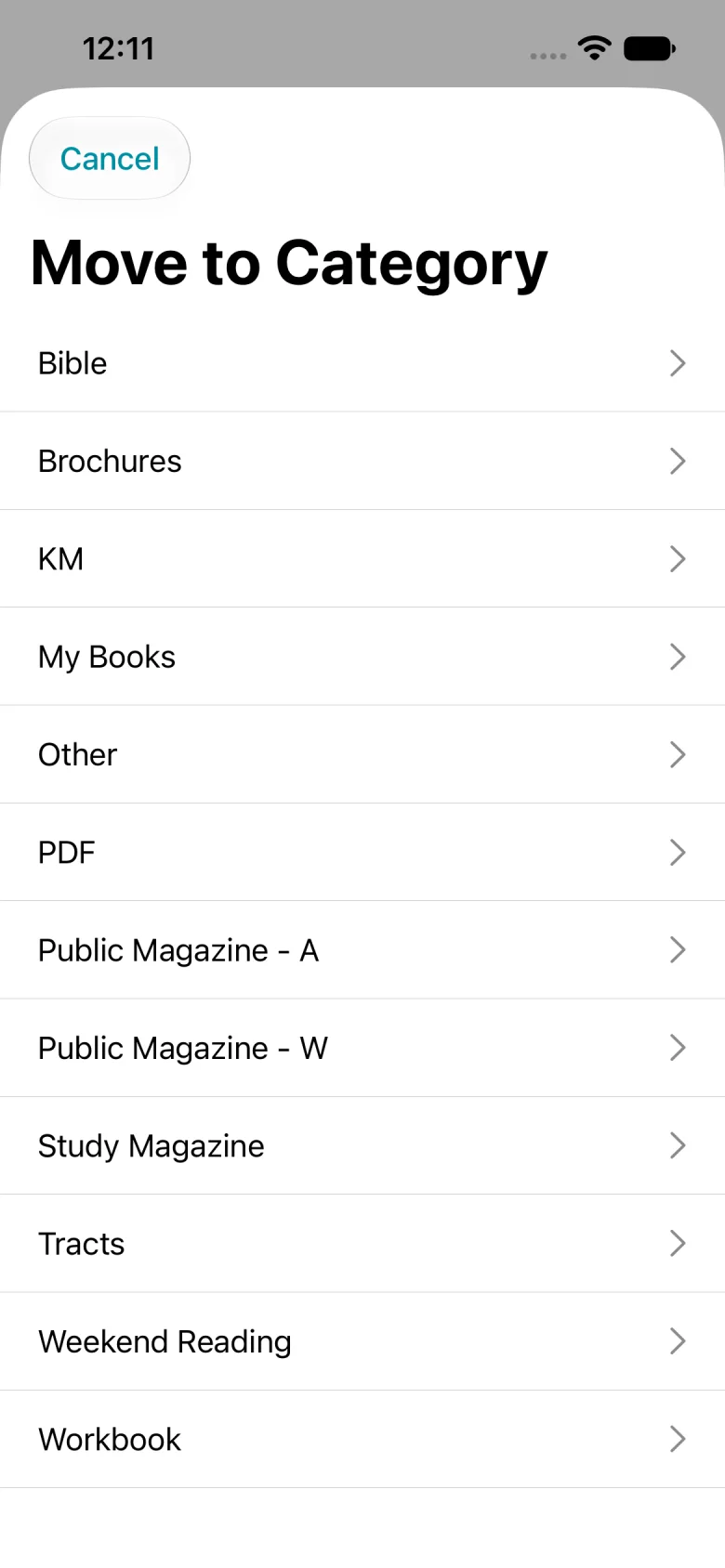
Tap Move.
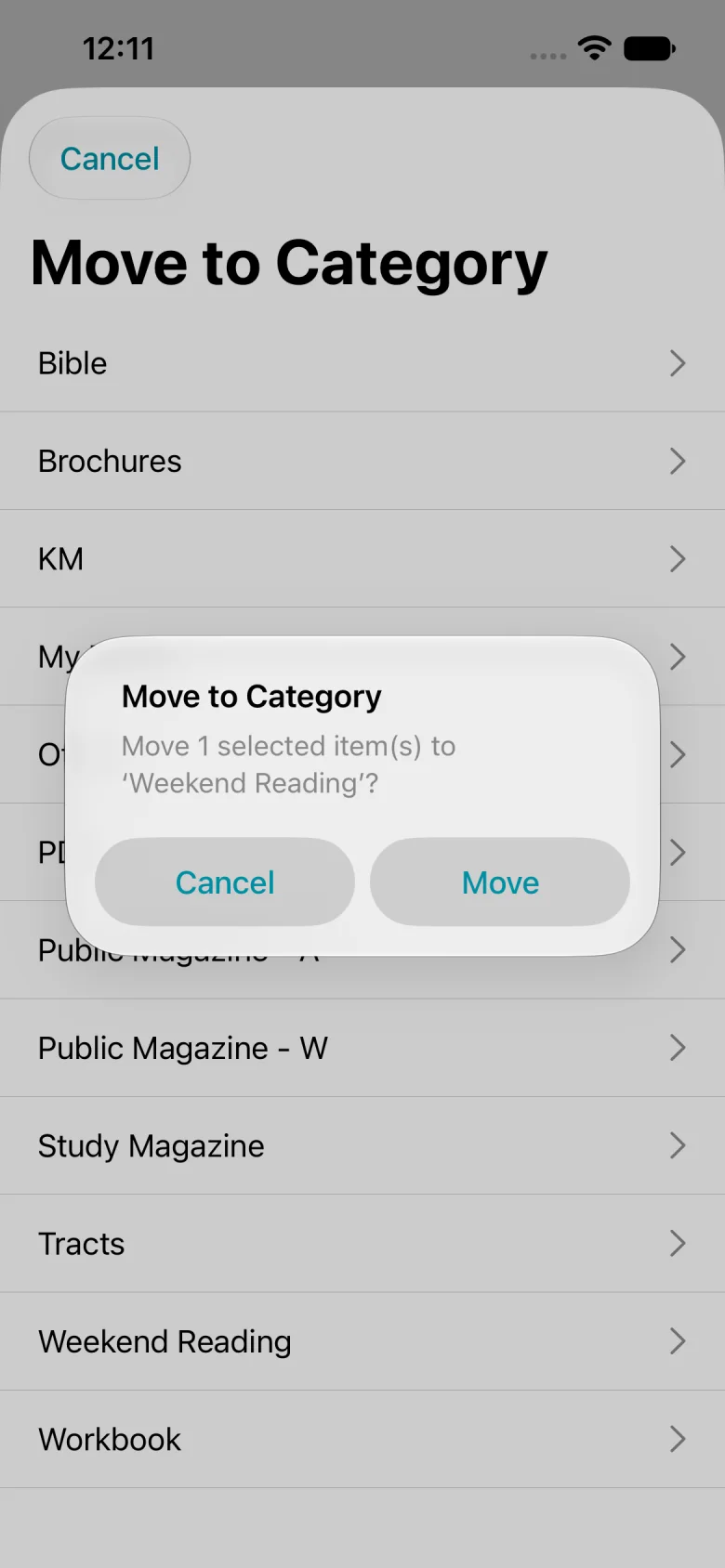
Choose Weekend Reading as the destination.
Tap Move to confirm.
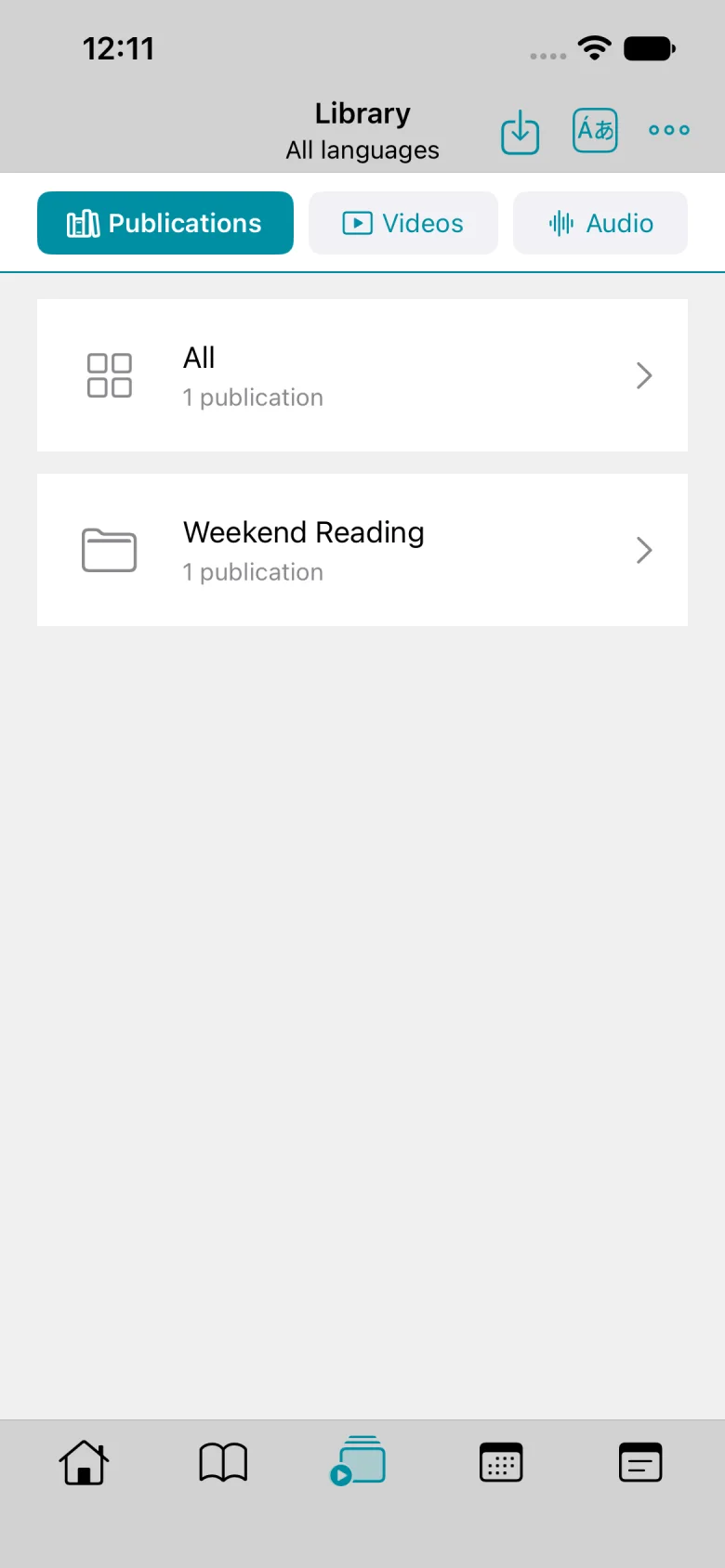
Open Weekend Reading to check the move.
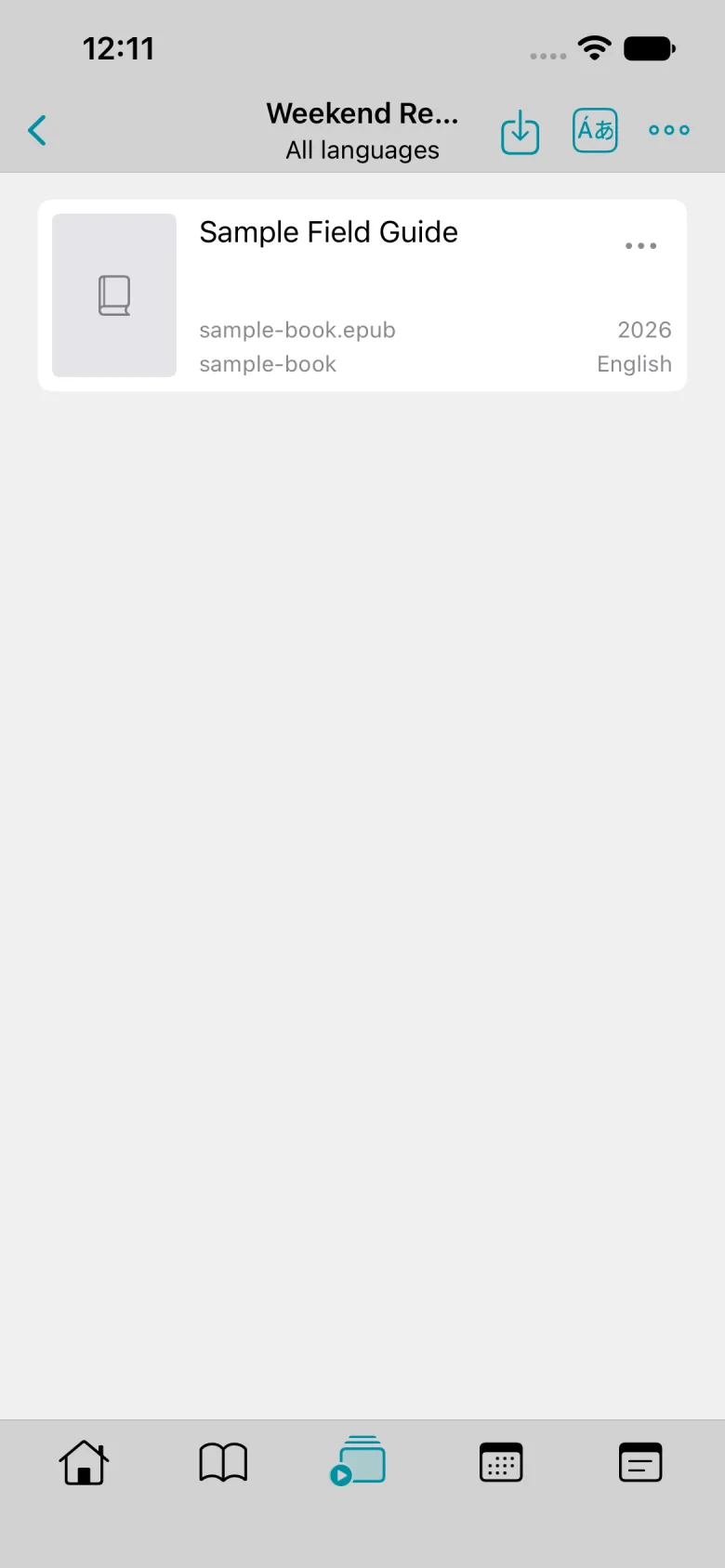
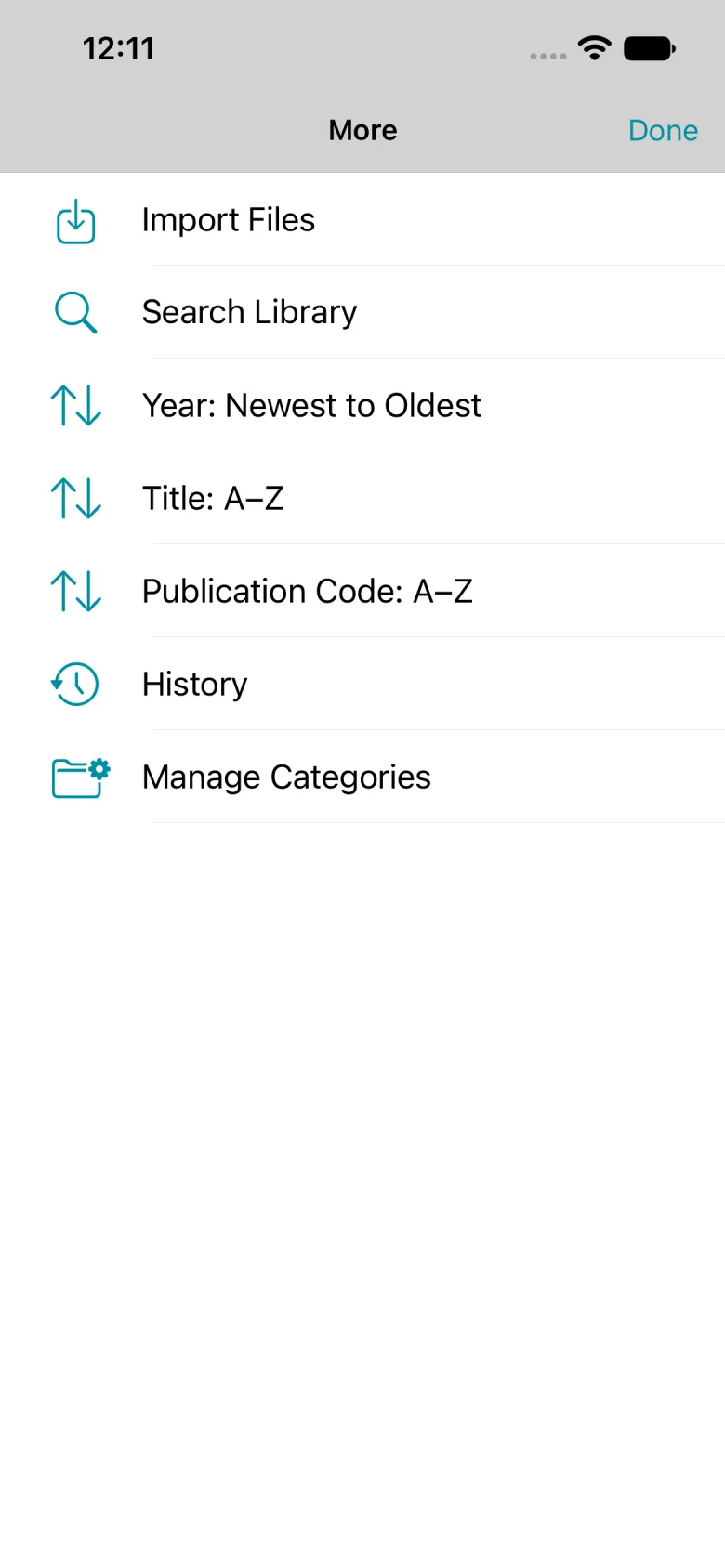
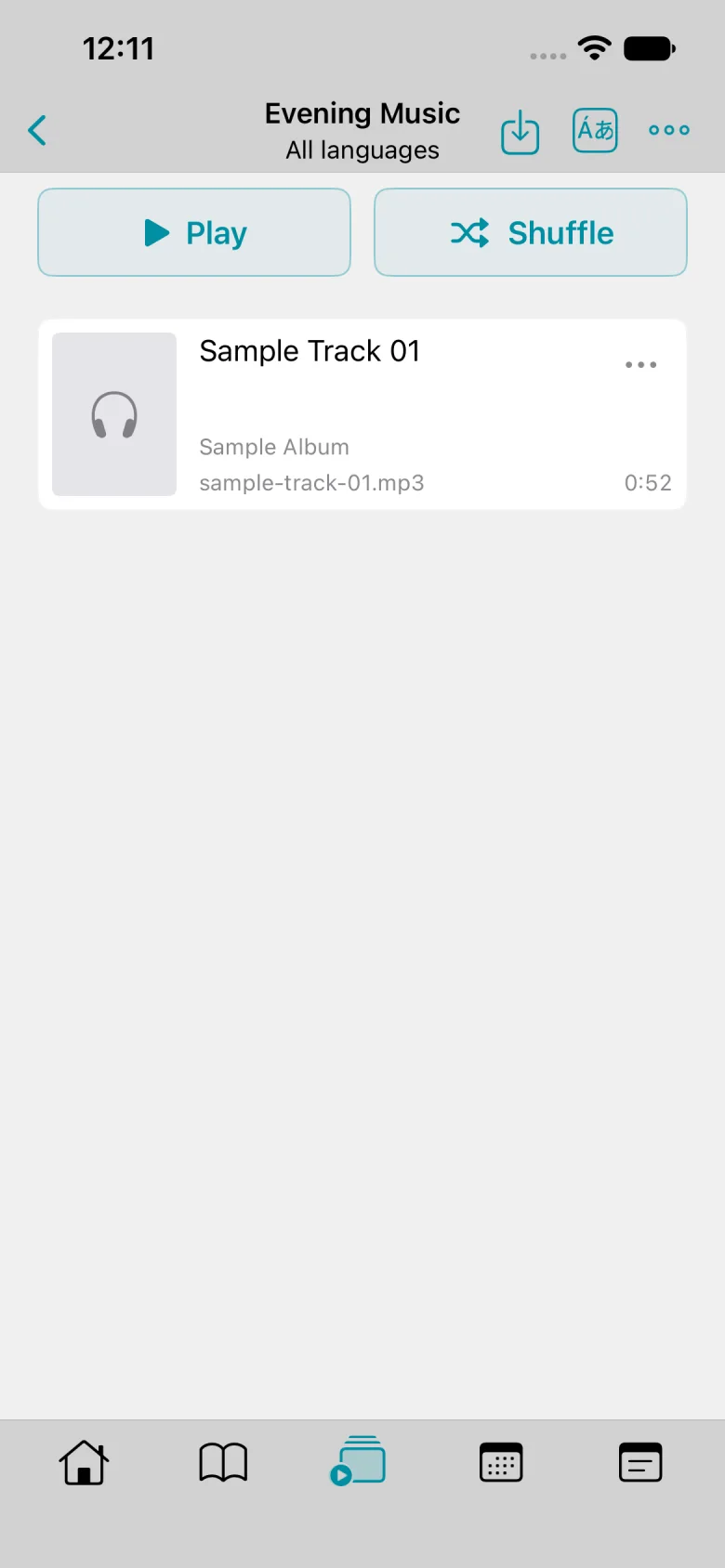
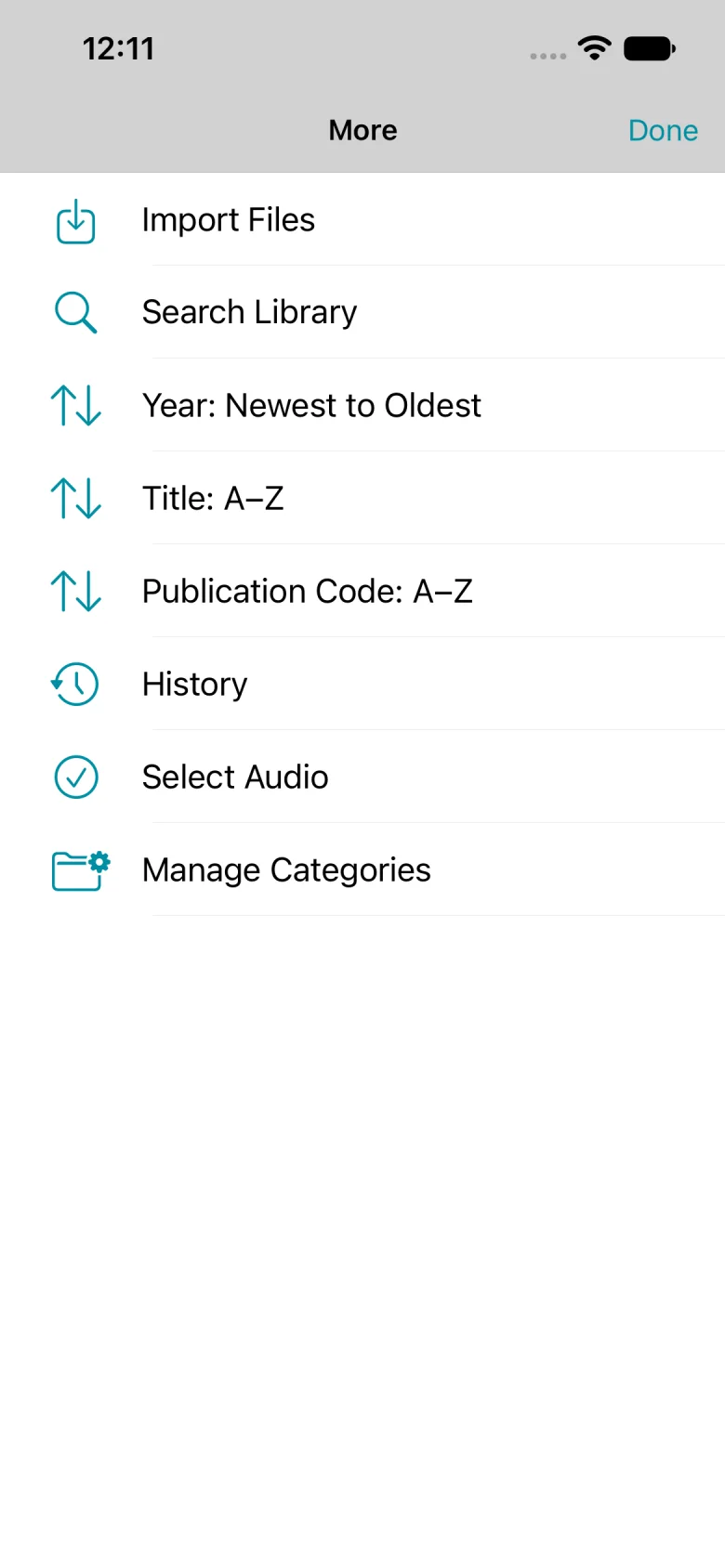
The publication now appears in Weekend Reading. Tap More to restore the defaults.
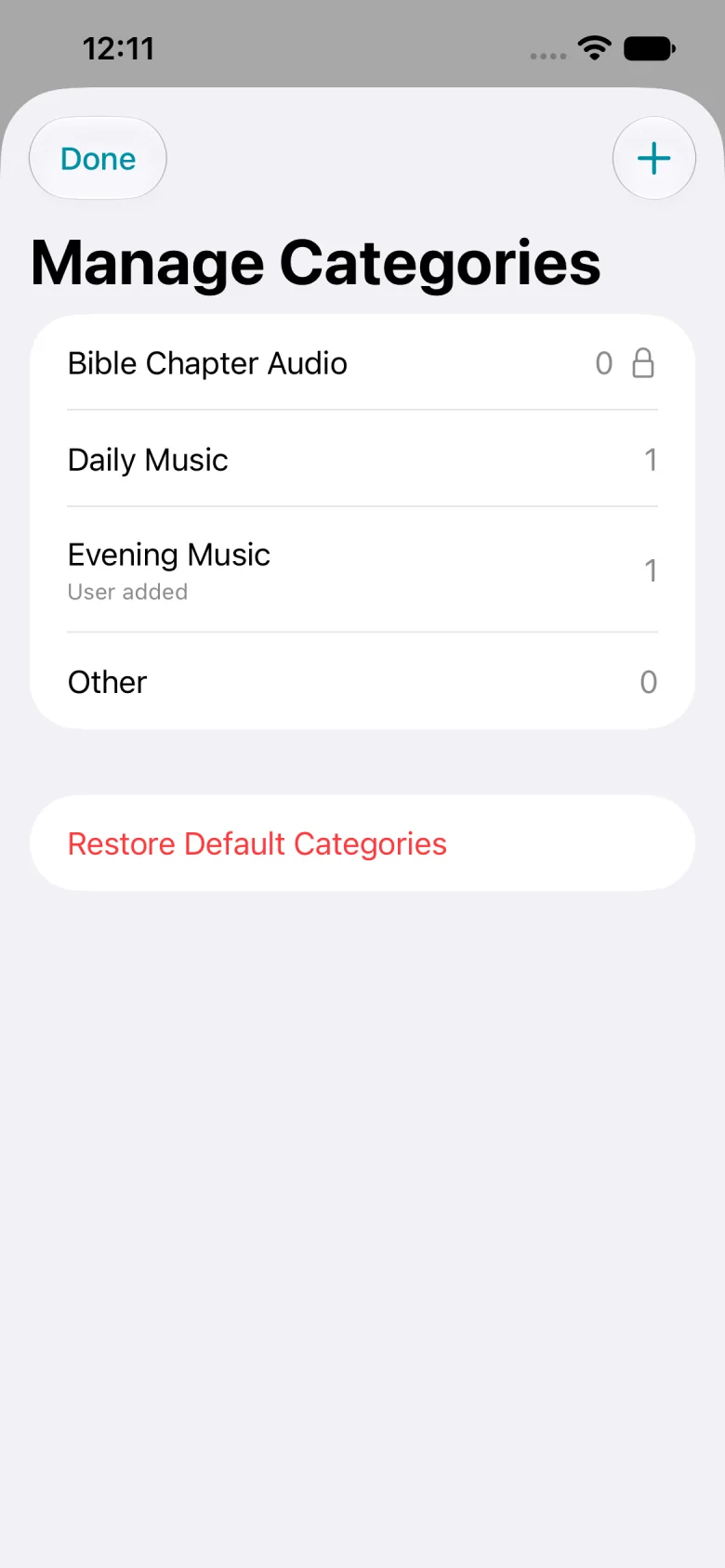
Open Manage Categories again.
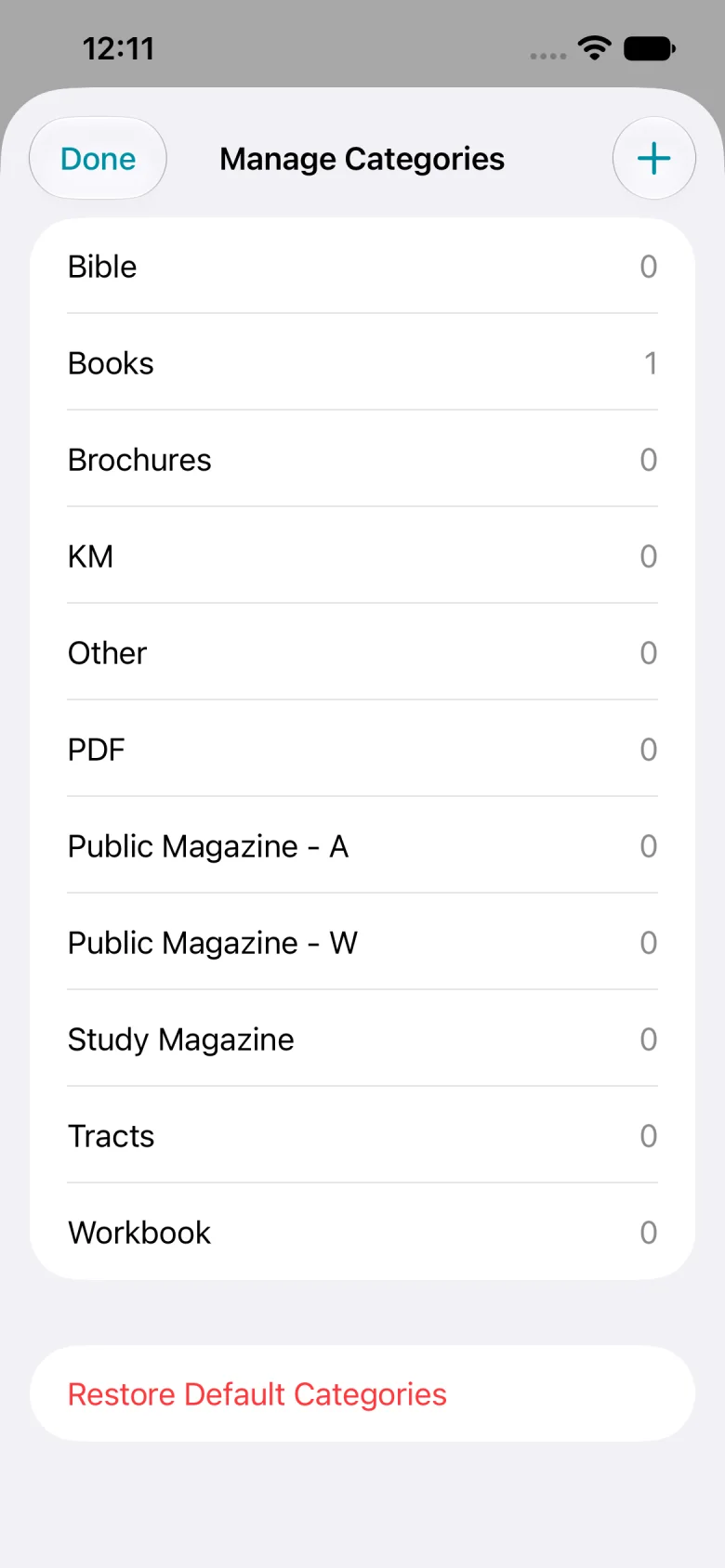
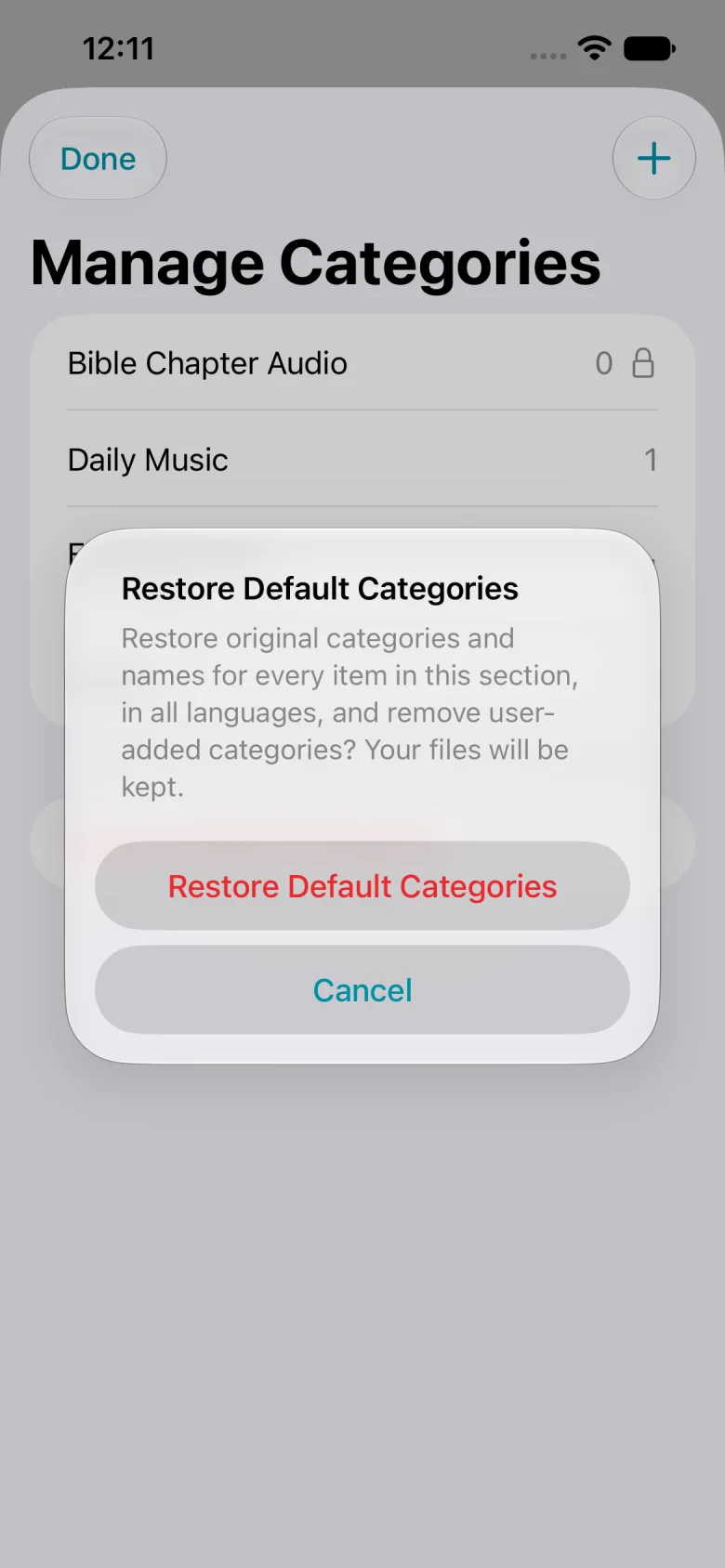
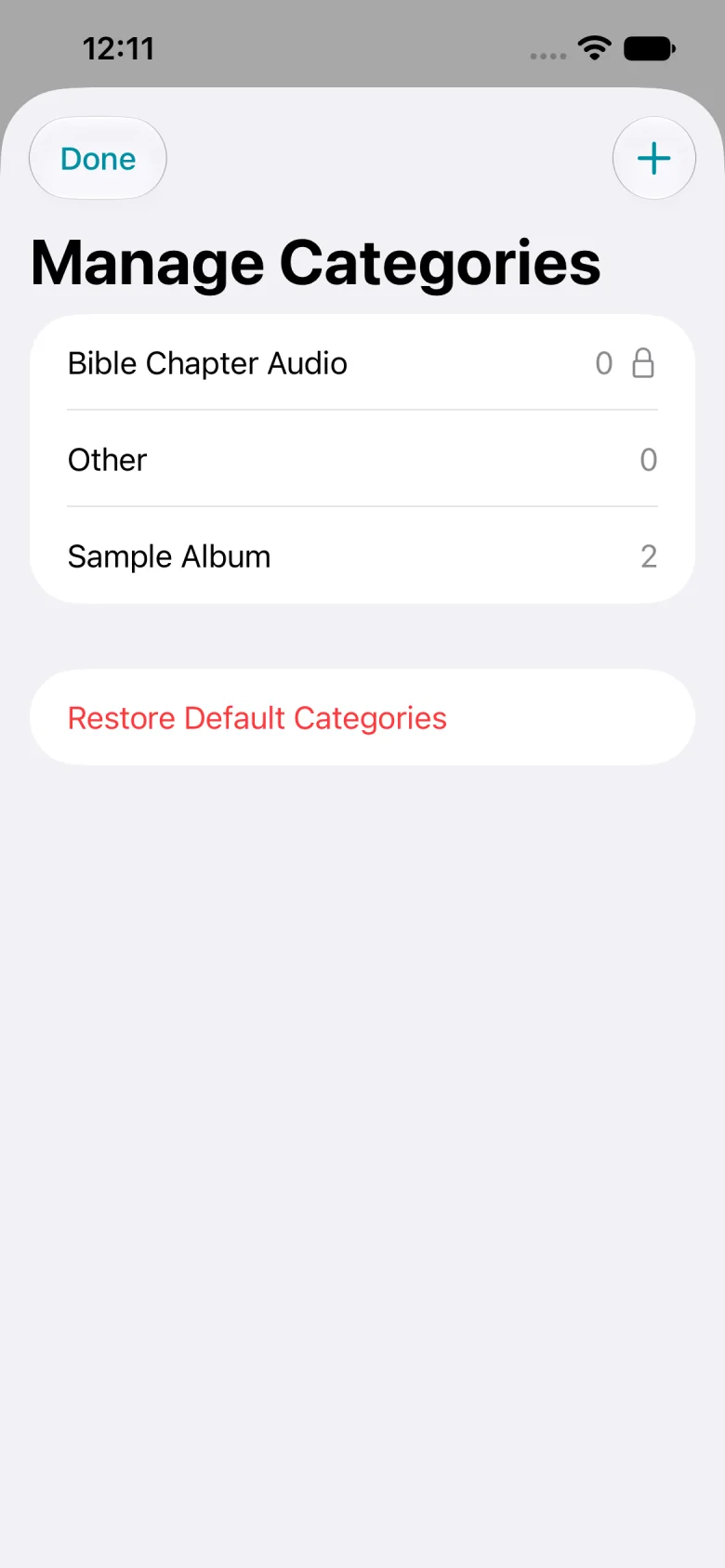
At the bottom of Manage Categories, tap Restore Default Categories.
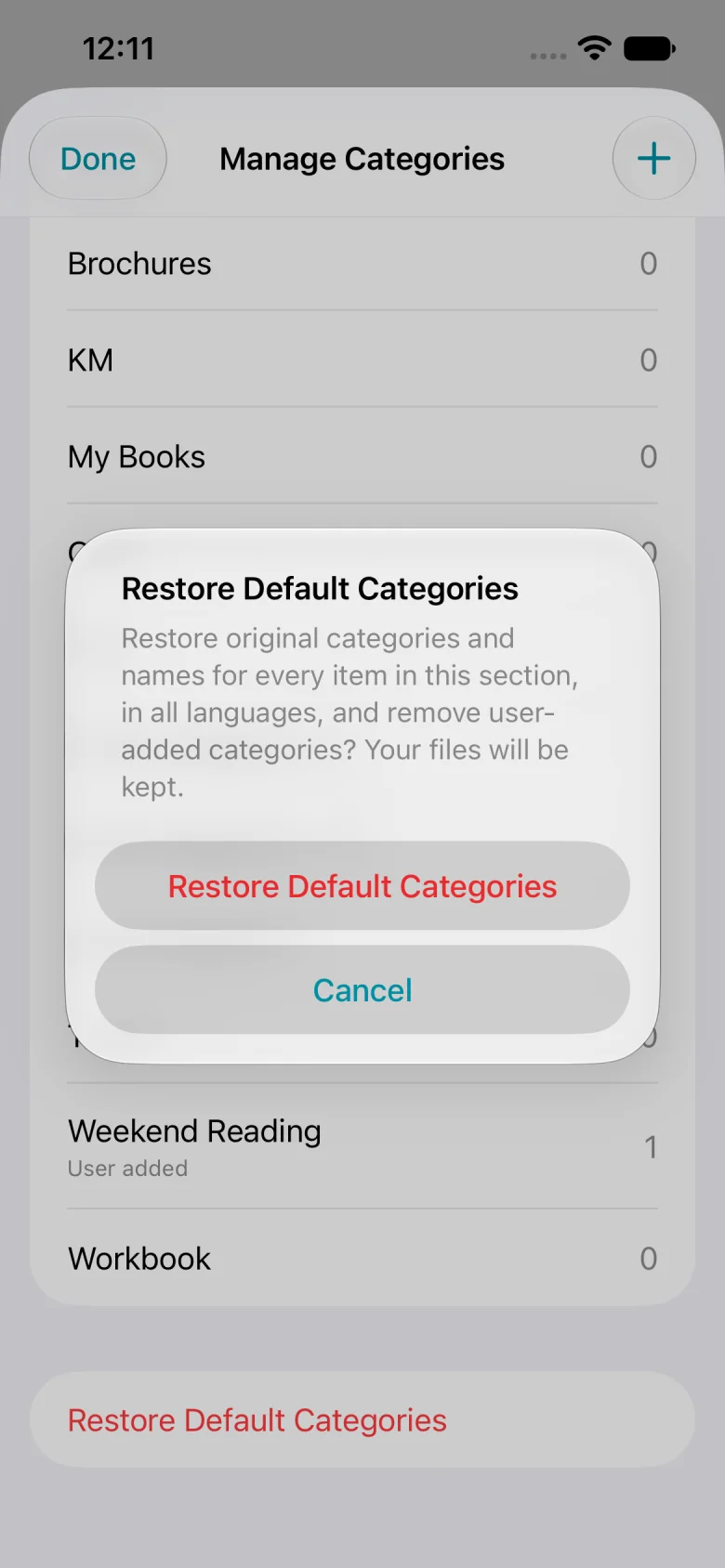
Confirm to restore the original names and assignments across languages.
Books is back, and the sample publication is assigned to it. Custom categories are removed and files are kept.
Written steps
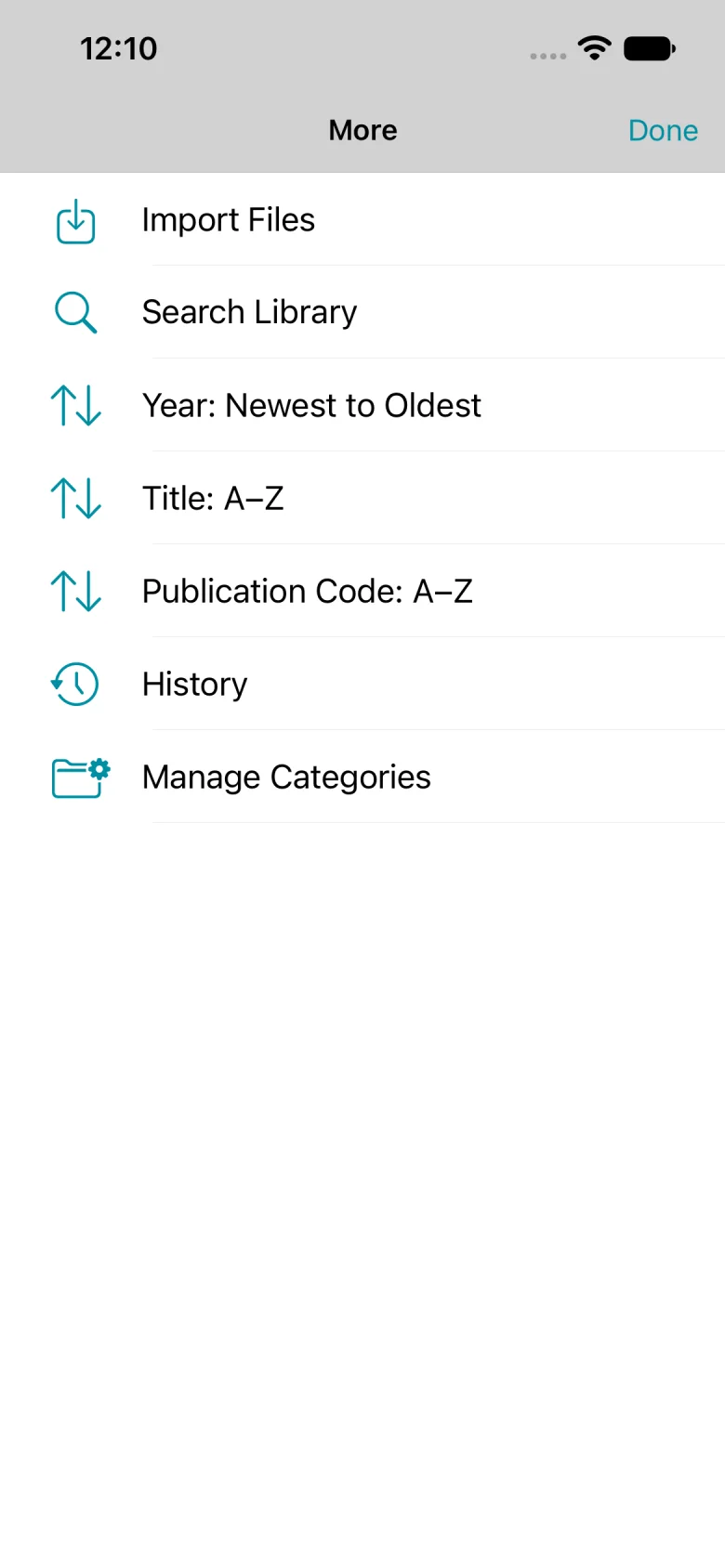
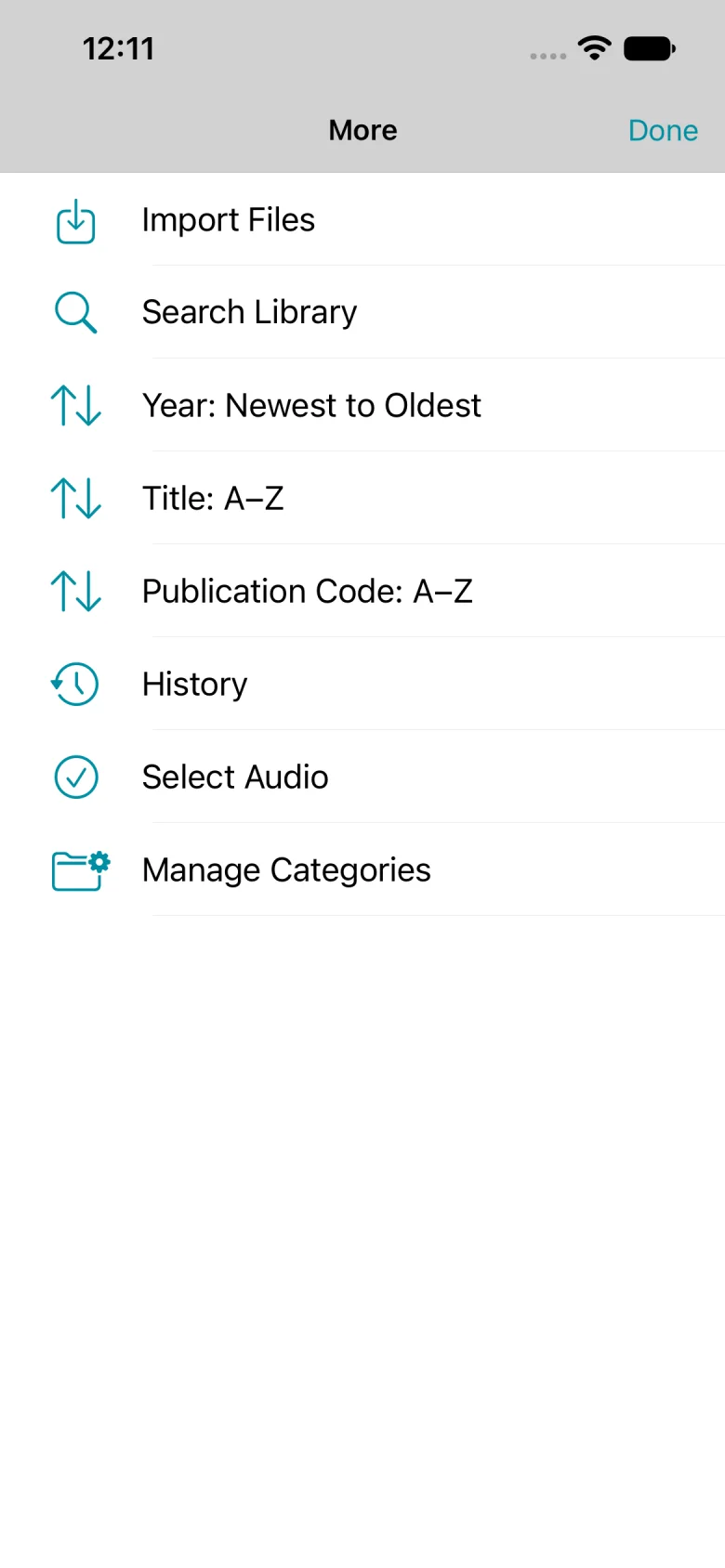
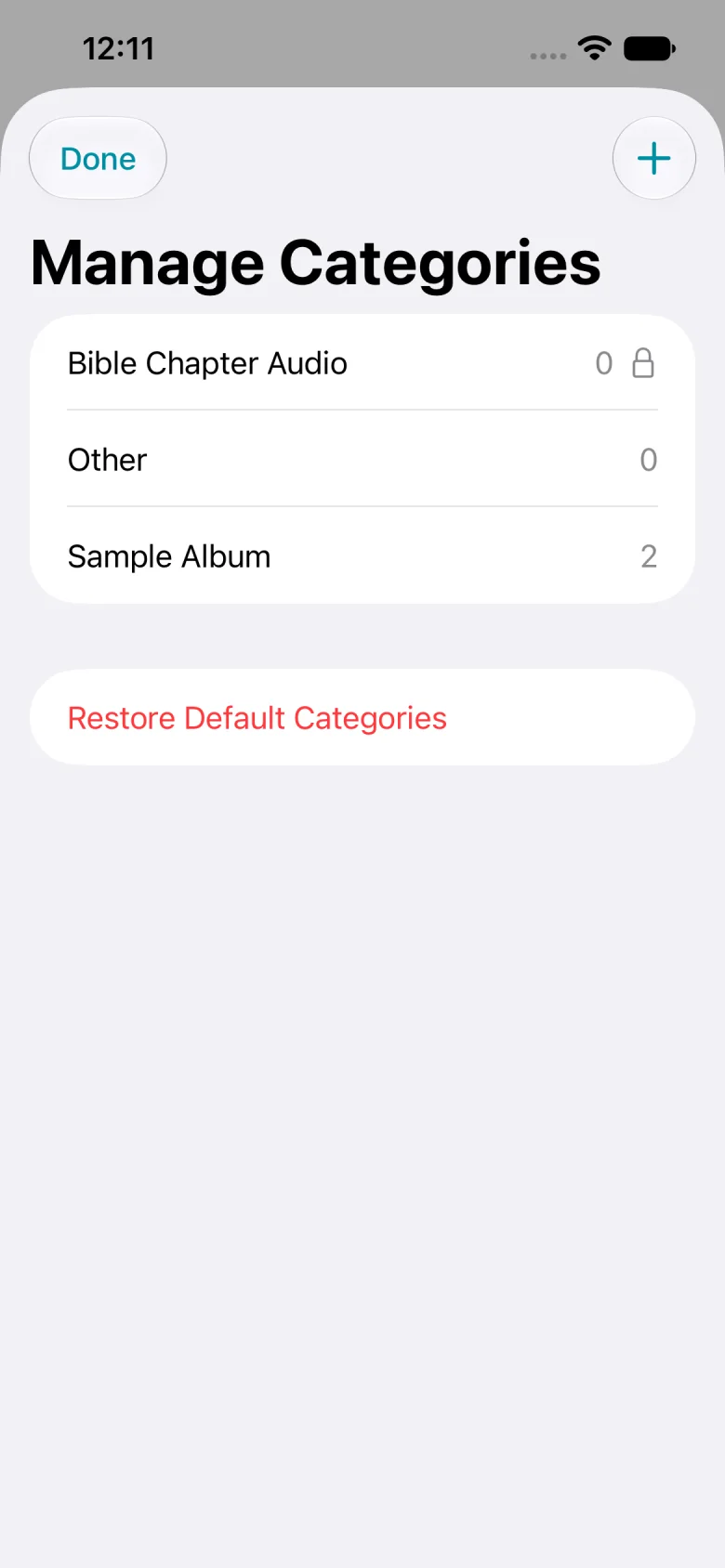
In Publications, open More and choose Manage Categories.
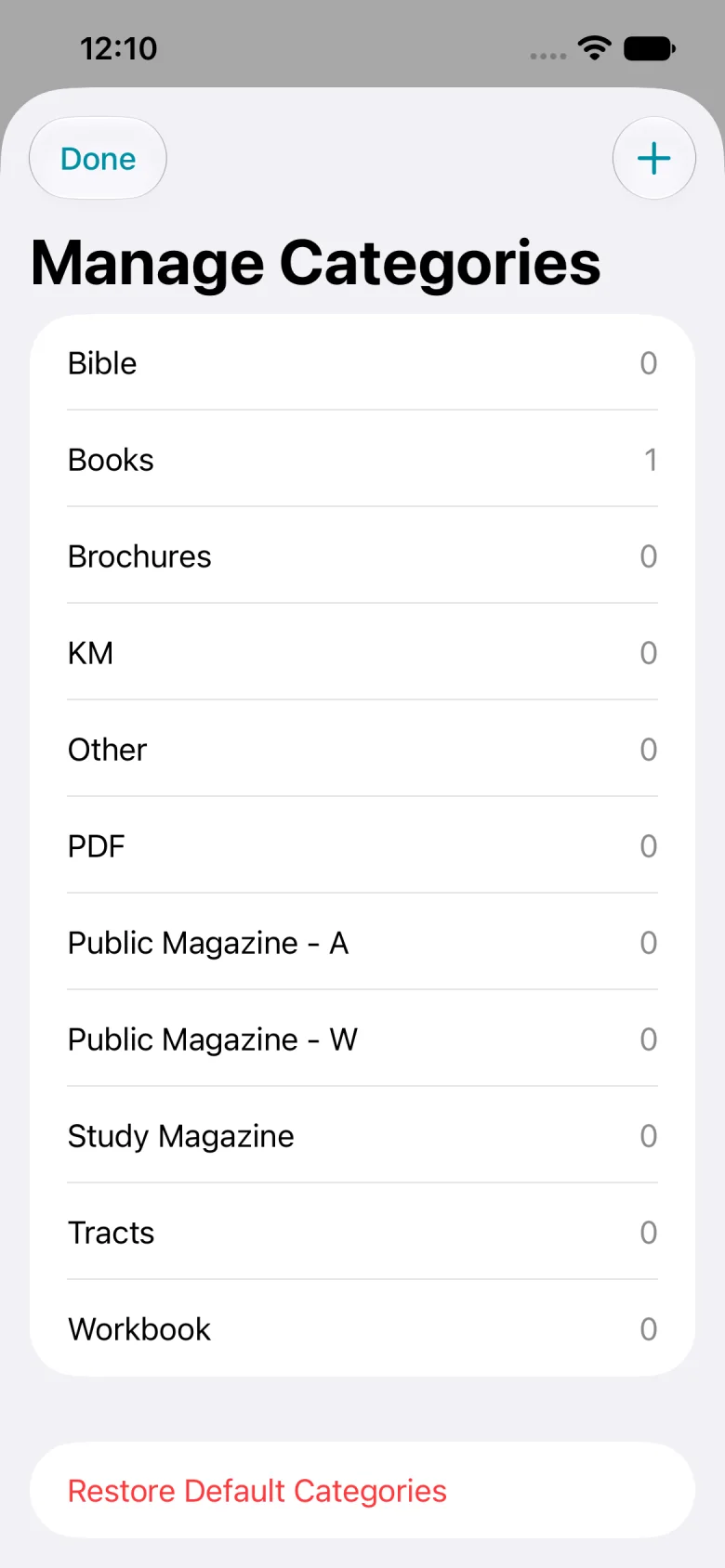
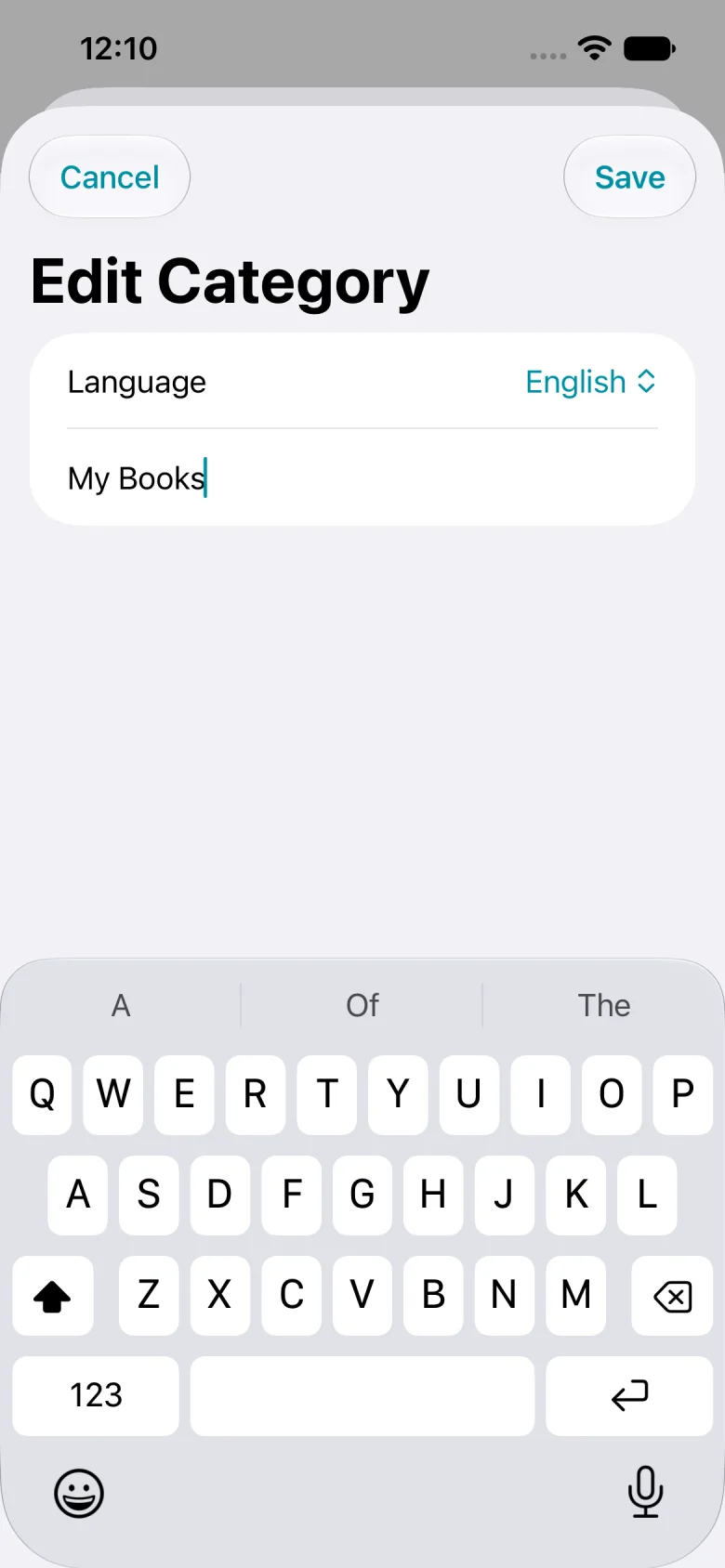
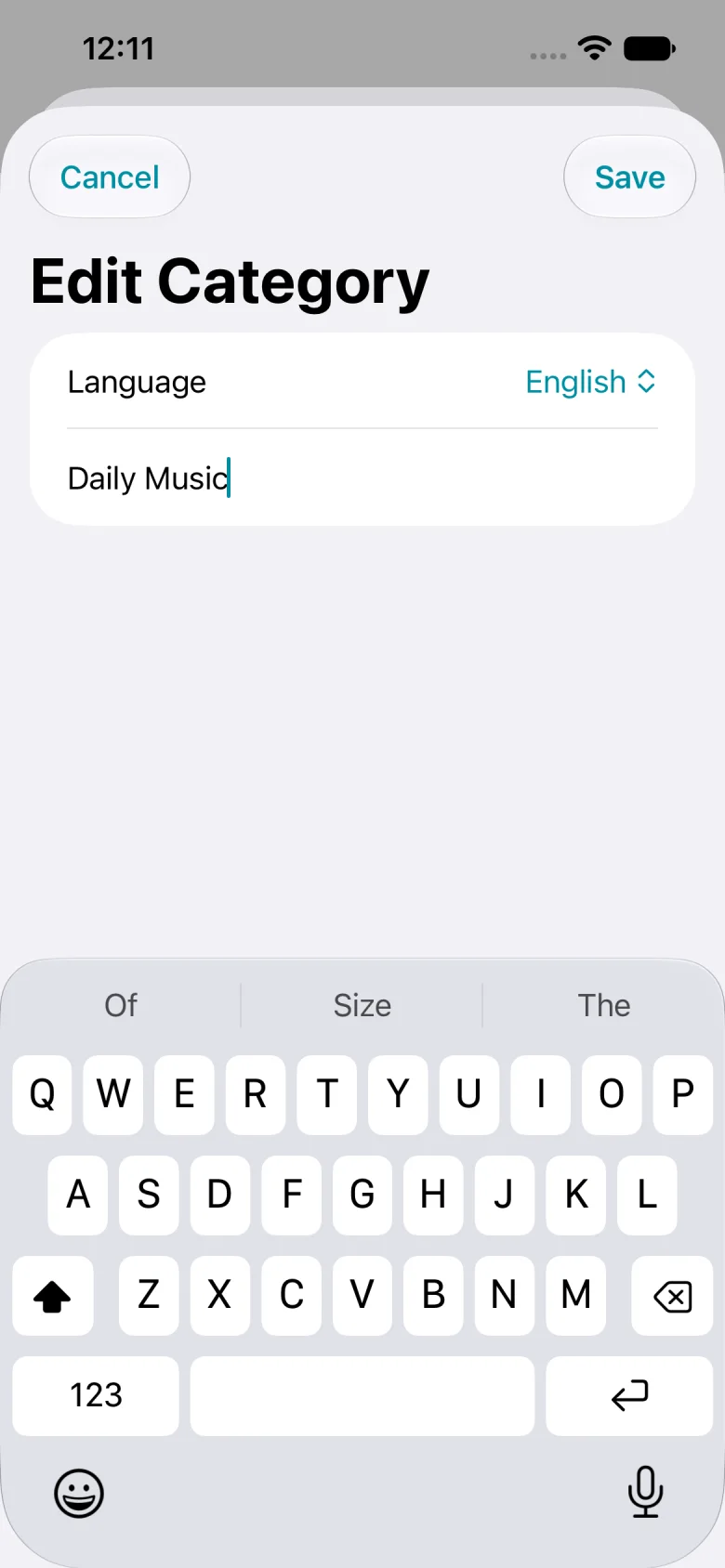
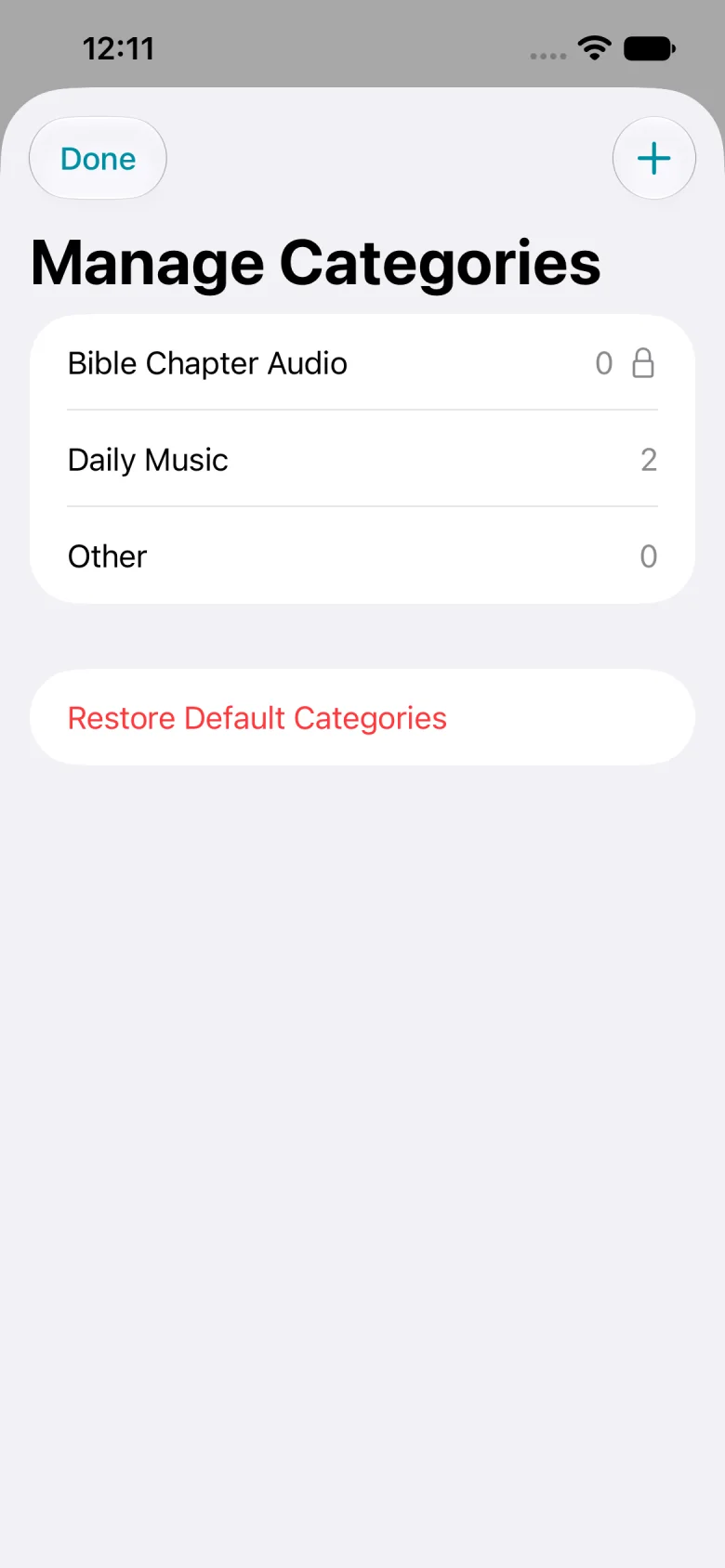
Tap Books, enter My Books, and tap Save. Tap + to create and save Weekend Reading.
Tap Done, open My Books, and touch and hold a publication. Tap Move, select Weekend Reading, and confirm.
In Manage Categories, tap Restore Default Categories and confirm. This restores names and assignments across languages, removes custom categories, and keeps your files.